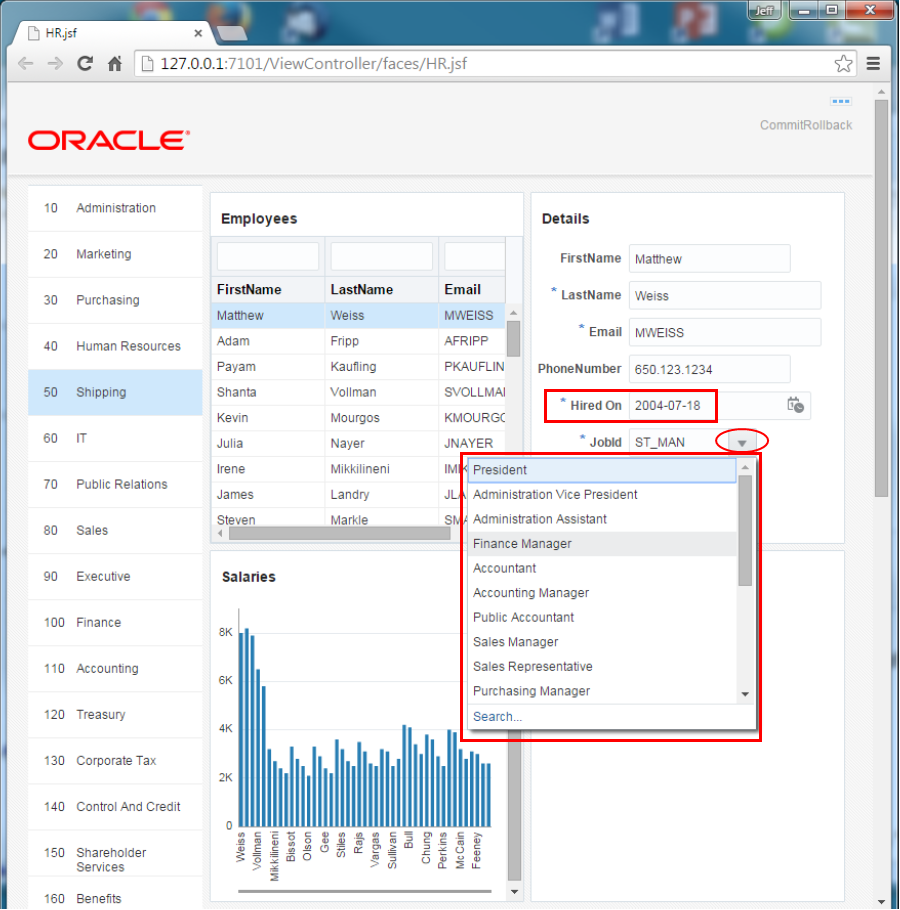
You refine the employee business components, add validation and modify how the UI displays.
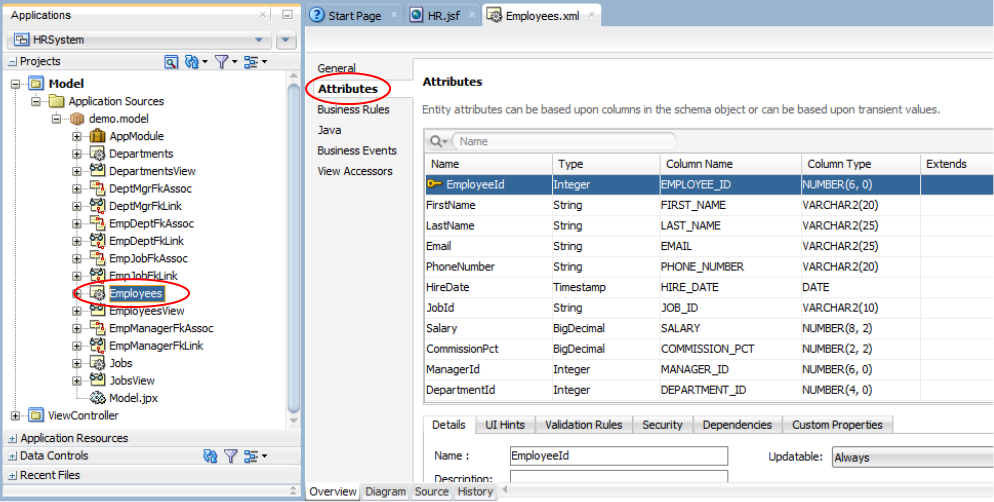
- In the Applications window, expand the Model > Application Sources > demo.model and double-click the Employees entity node.The full definition opens in the editor area. Select the Attributes tab to see all the employee attributes.
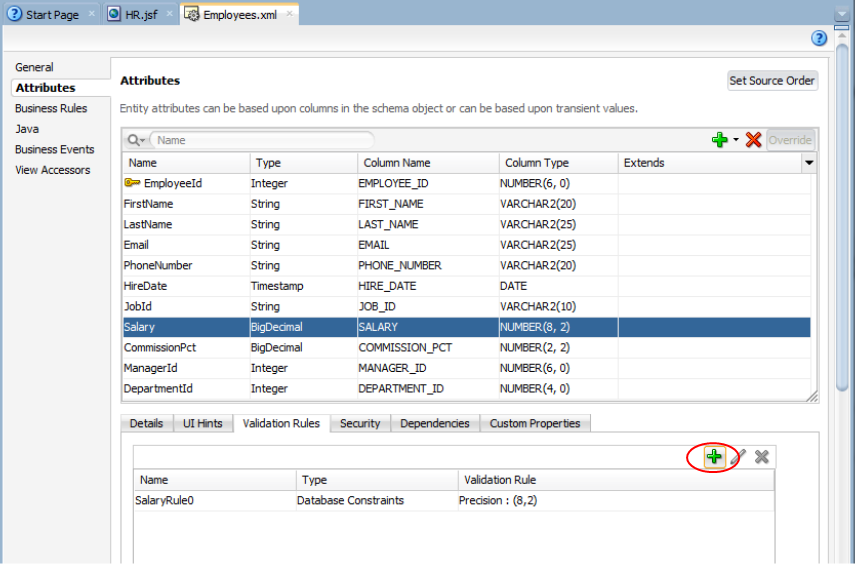
- Select the Salary attribute then click the Validation tab below.To the right-click the green plus sign to add a new validation rule.
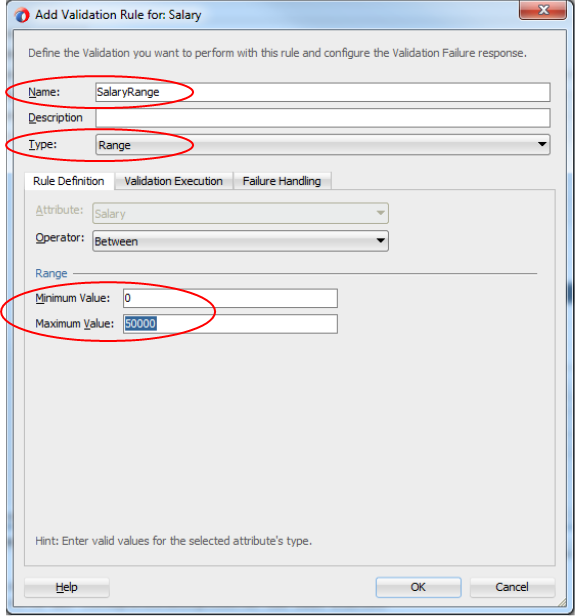
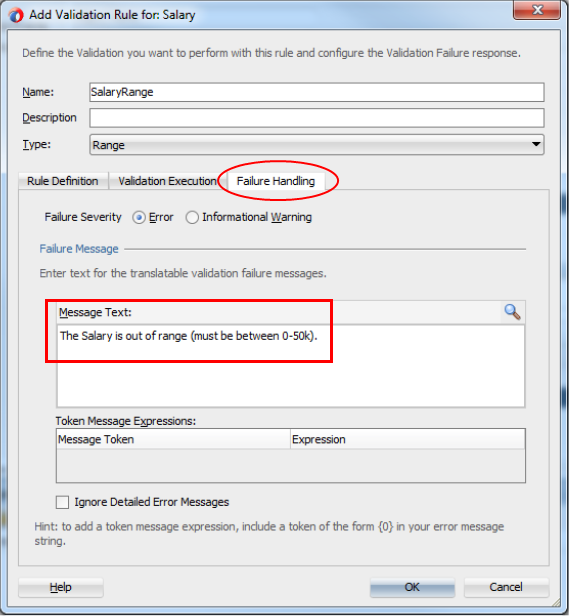
- Set the Name to SalaryRange, the Type to Range, the Minimum Value to 0 and the Maximum Value to 50000.There are many operator you could you to implement your validations including, compare, length, restrictive list and others.
- Click the Failure Handling tab and then set the error message text.Set the Message Text property to The Salary is out of range (must be between 0-50k).
- Save All your work.
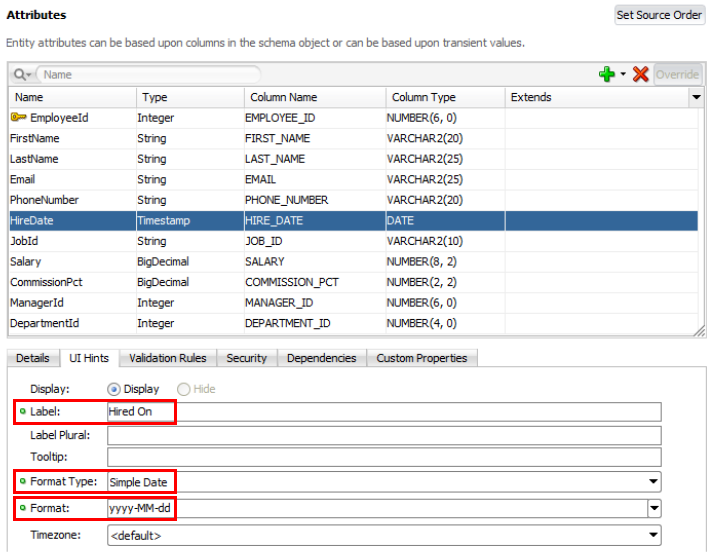
- Next, refine the display properties of the HireDate.Select the HireDate attribute and then click the UI Hints tab.Set the Label to Hired On, the Format Type to Simple Format, and then select a Format you like.
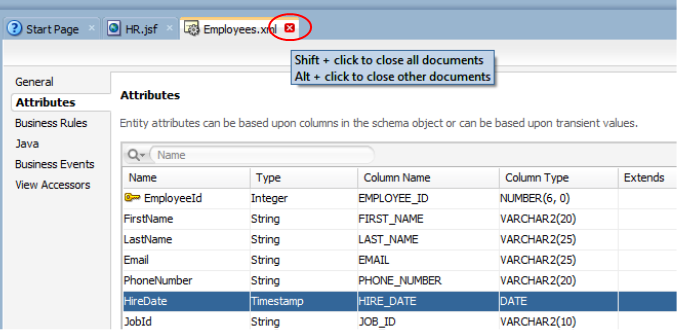
- Save all your work and then click the x in the Employees.xml tab.
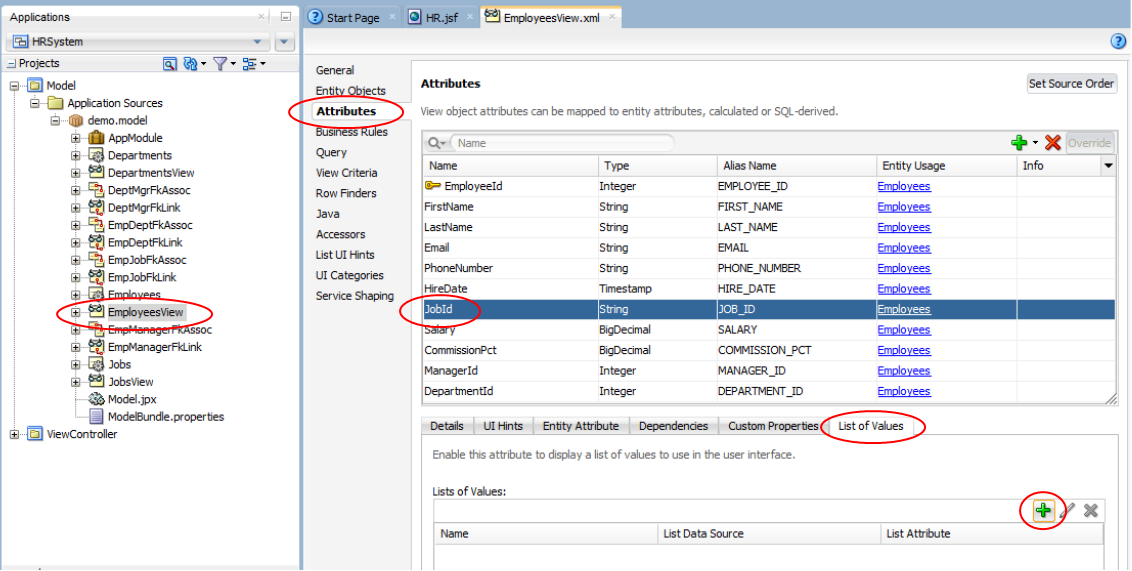
- Next, in the Applications window, double-click the EmployeesView component.In the editor, select the Attribute tab, and then the JobId.Click the List of Values tab and then click the green plus sign.
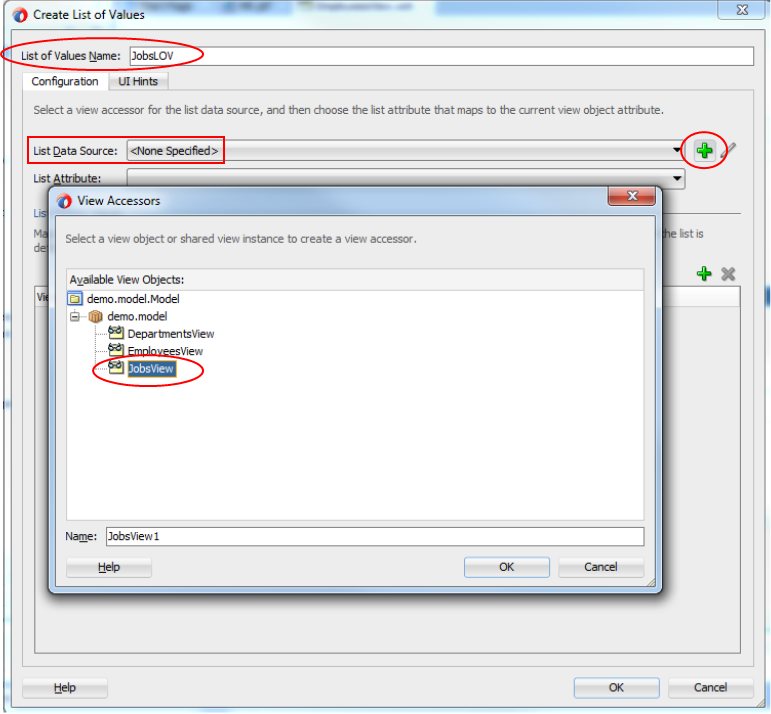
- In the Create List of Values pane, set the Name to JobsLOV.Then in the List Data Source, click the green plus sign and select the JobsView.Click Ok to return.
 Back in the LOV pane, set the List Attribute to JobId .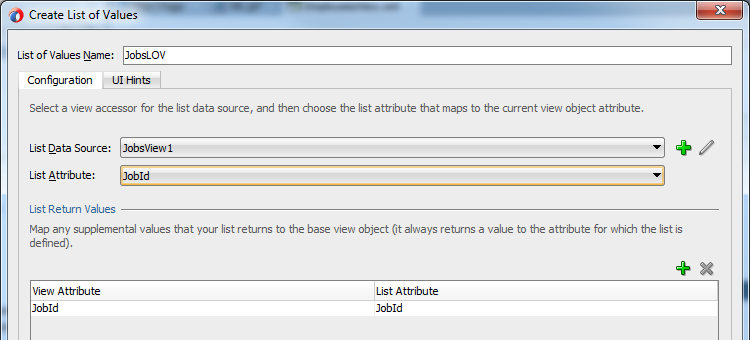
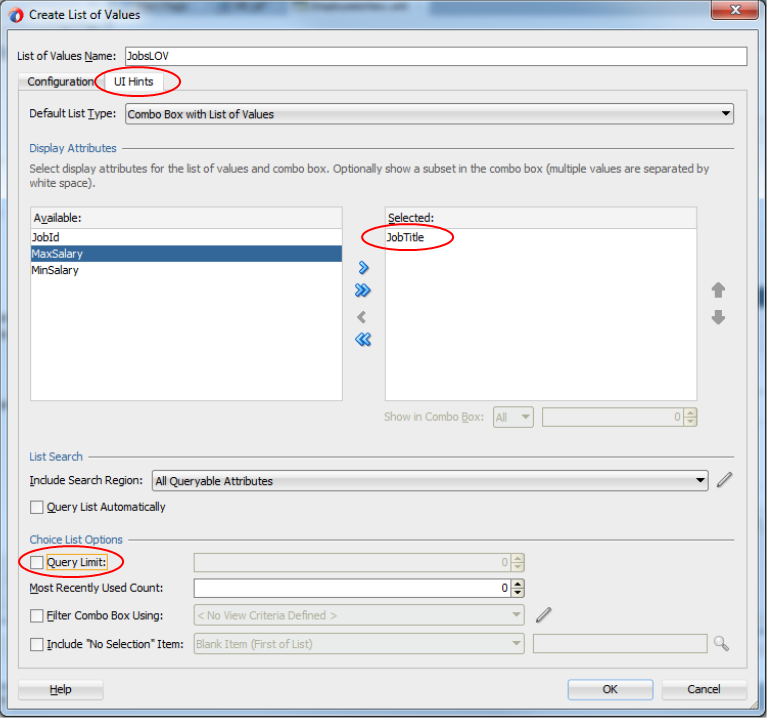
- Now set the UI Hints for the LOV.Click the UI Hints tab and shuttle the JobTitle to the Selected side to display it in the LOV.At the bottom of the pane, you can set a limit for the number of records to retrieve. Deselect the Query Limit to remove that restriction.Then click OK to complete the LOV.Save all your work
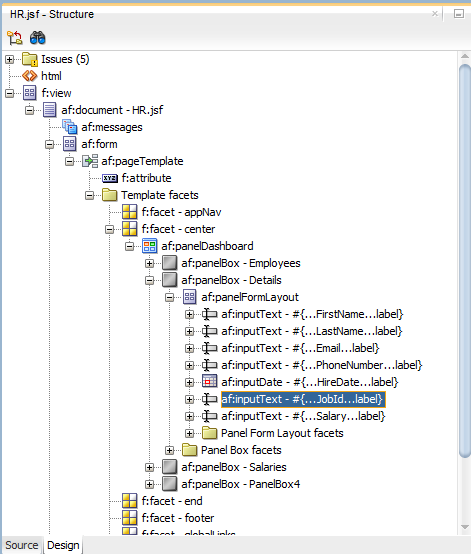
- Now update the page to reflect the newly added JobId LOV.Go back to the HR.jsf page and in the Structure window, expand the af:panelBox - Details > af:panelFormLayout.Select and delete the af:inputText - JobId.
- Now using the Data Controls, add the JobId back to the page (which will bring along the LOV). The key thing to remember is the attribute you add must come from the same data control as it did originally (in our case EmployeesView4).Open the Data Controls window and expand the AppModuleDataControl > DepartmentView1 > EmployeesView4 and select the JobId.Drag and drop it between the HireDate and Salary.In the popup menu select List of Values > ADF LOV Choice List.
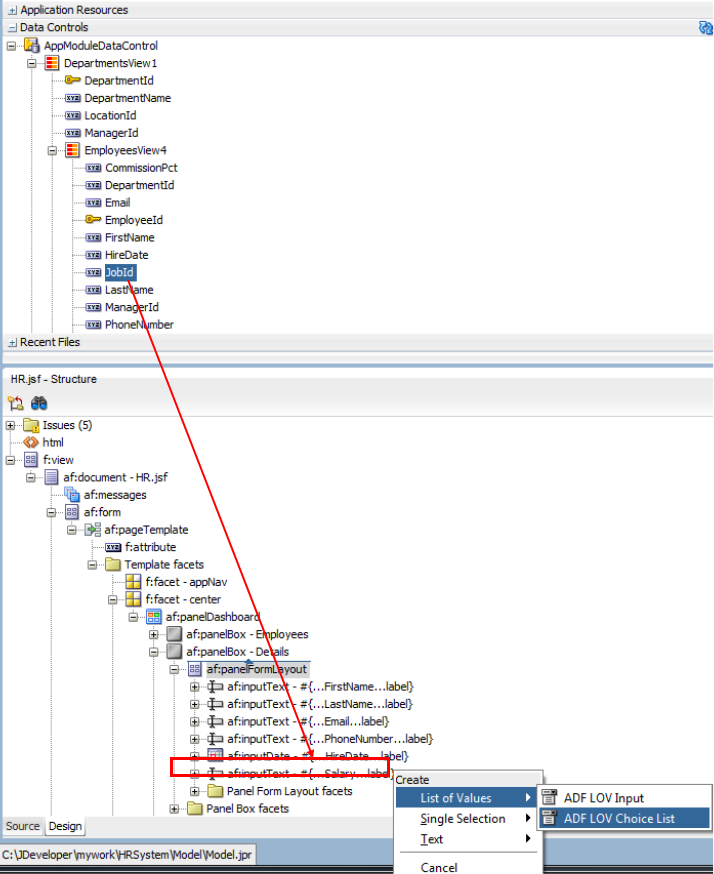 If the af:inputComboboxListOfValues is not positioned correctly, drag it to the correct place.Save all your work.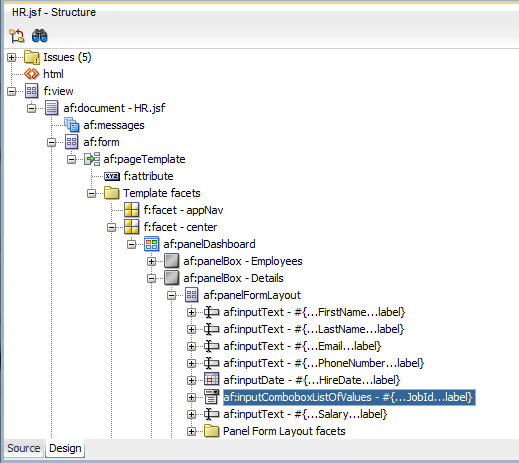
- The last thing we need to do is add commit and rollback functionality.In the Data Controls, expand the AppModuleDataControl > Operations nodes.Drag the Commit operation to the Structure window and drop it on the f:facet - appNav node.In the popup menu select ADF Link.
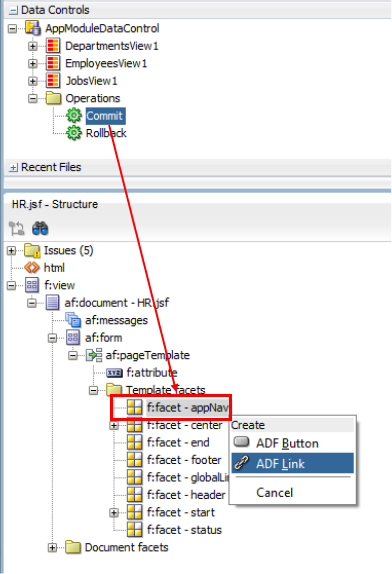 Then, using the same gestures, add a Rollback right below it
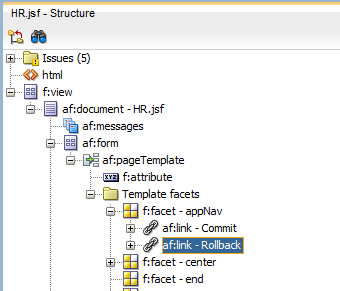 To finish this step add a Spacer (from the Components window) between the two links. Use the search area at the top of the window to find the Spacer component.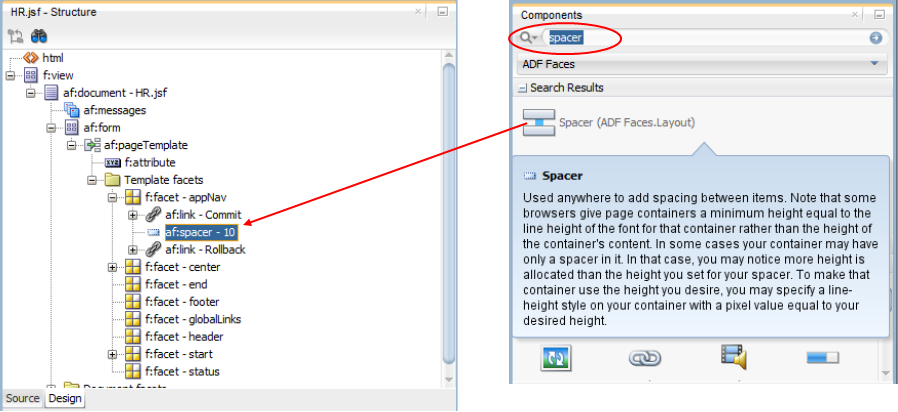
- Save your work and compile the changes. Since we added new validation, right-click in the HR.jsf page and select Run.When the browser opens, navigate to the Details panel box, click the widget next to the JobId and notice the drop down displaying all the job names. Change the job to a different value.Also notice the label and format for the HireDate field match what we set earlier.