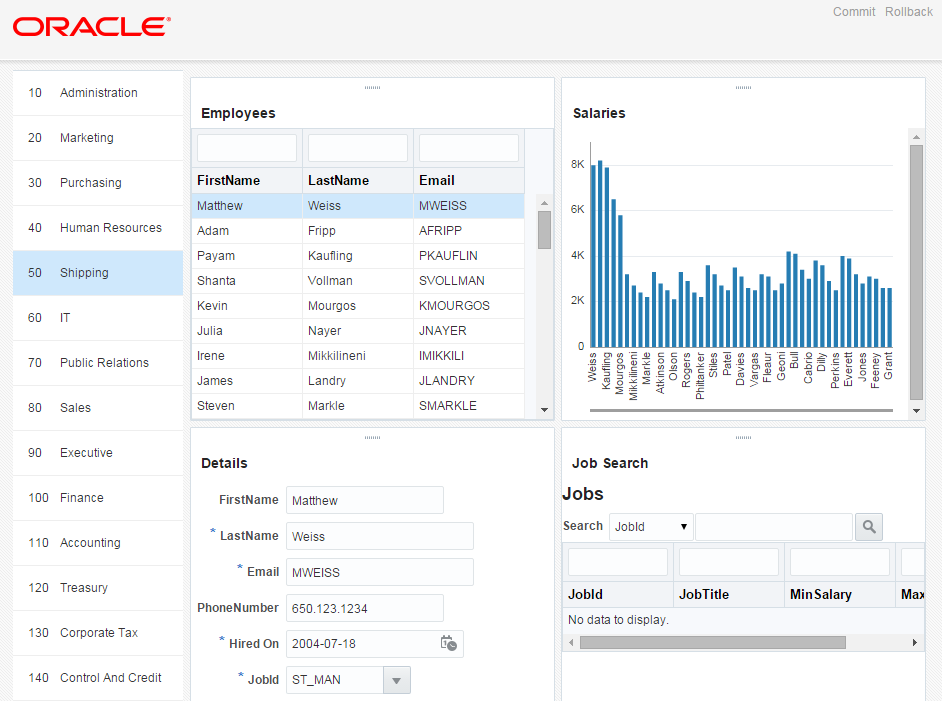
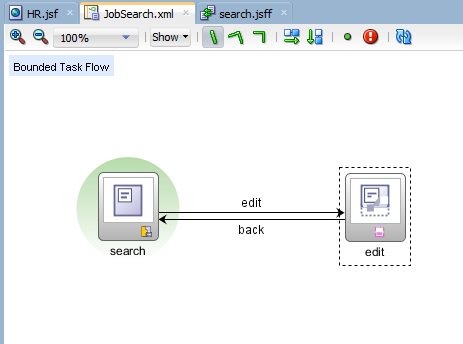
Web applications usually have more than one page in them. In this part of the tutorial you two pages - a Job Search page, and an Edit page - to your application and use the ADF Task Flow Diagrammer to define the navigation rules between the two pages. You then use features of the ADF Faces Framework to add extra functionality to the pages. Finally you add the task flow to one of the panels on the page.
In this section, you work with the ViewController project and include task flows to determine business processes. You create a new task flow, add view components and control flows and then consume the task flow in the HR page.
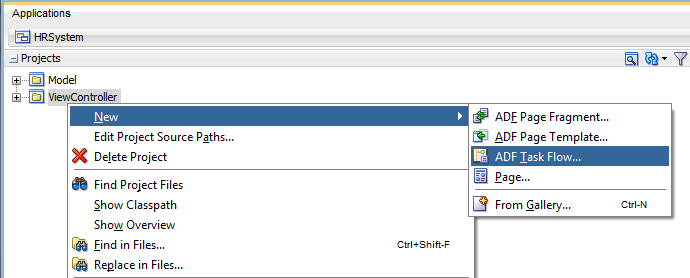
- In the Applications window, right-click the ViewController and select New > ADF Task Flow....
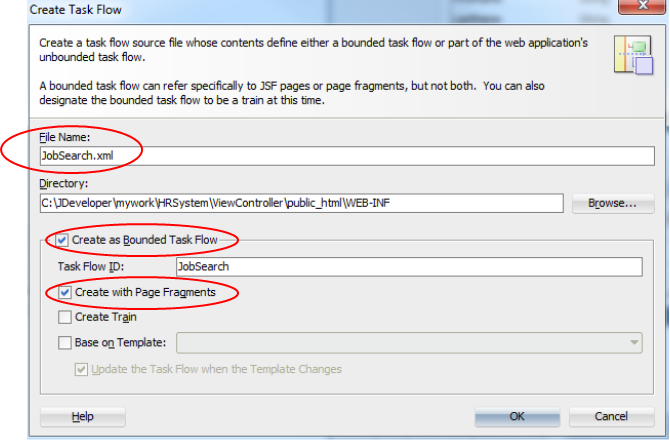
- In the Create Task Flow pane, set the File Name to JobSearch.xml. The remaining values should be fine, confirm the Create as Bounded Task Flow and Create with Page Fragments checkboxes are selected.Then click OK.
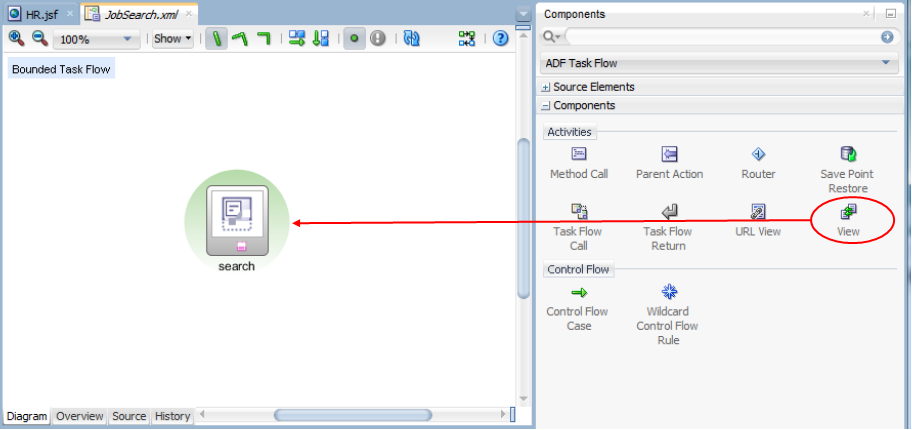
- The task flow opens in the editor. Notice the Components window now shows activities and control flows you may add. You may call a method or another task flow, invoke routers or return to called task flows. We'll keep it simple and add a couple of pages, with a control flow between them.From the Components window, drag a View activity onto the editor and drop it. Set the name to search. The green circle surrounding the view signifies it is the entry point to the task flow.
 Add another View activity, to the right, and name it edit.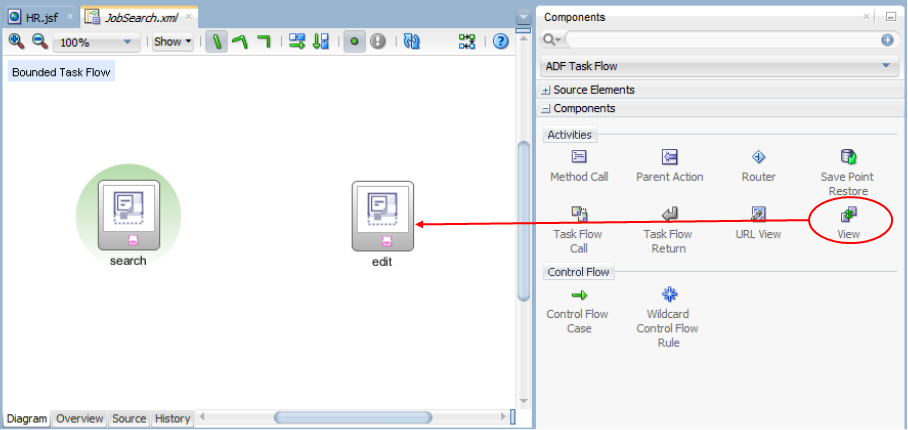
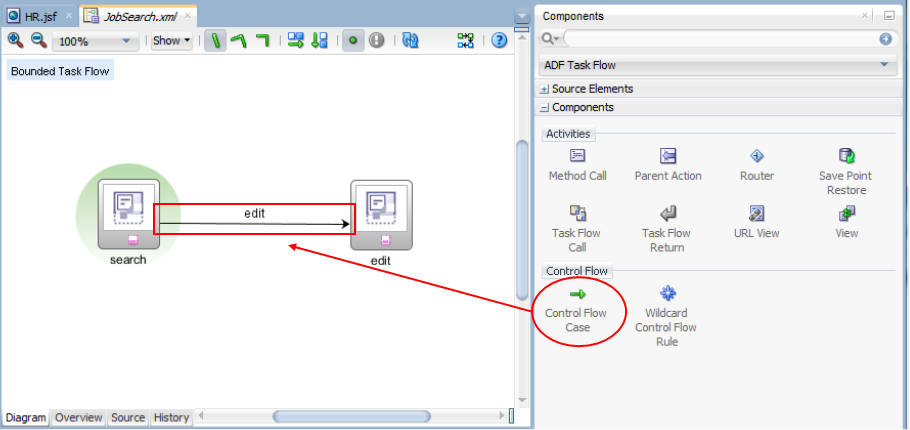
- Next, from the Components window, drag a Control Flow Case and drop it on the search view activity as the starting point. Then click on the edit view activity as the ending point.Name the flow edit.
 Add another flow starting with the edit going back to search. Name it back.Save all your work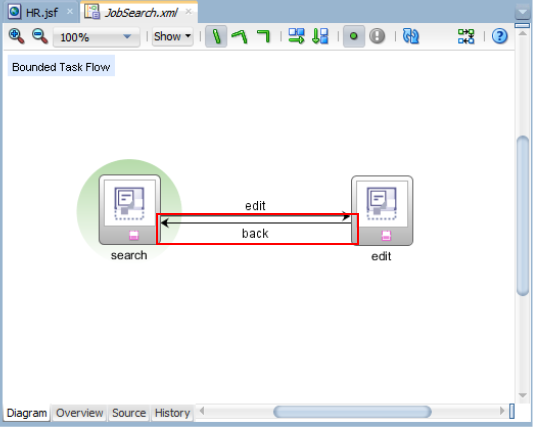
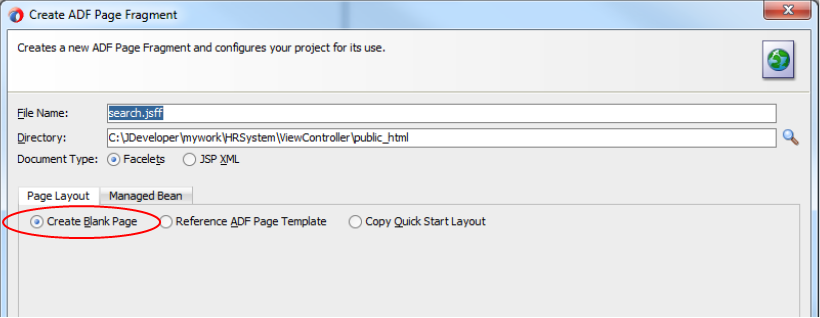
- Next, define the search page. This page will let you search for jobs and then move on to update properties about the jobDouble click the search view to create the page.The name is carried over to the Create a new ADF Page Fragment pane. Make sure the Create Blank Page radio button is selected and then click OK.
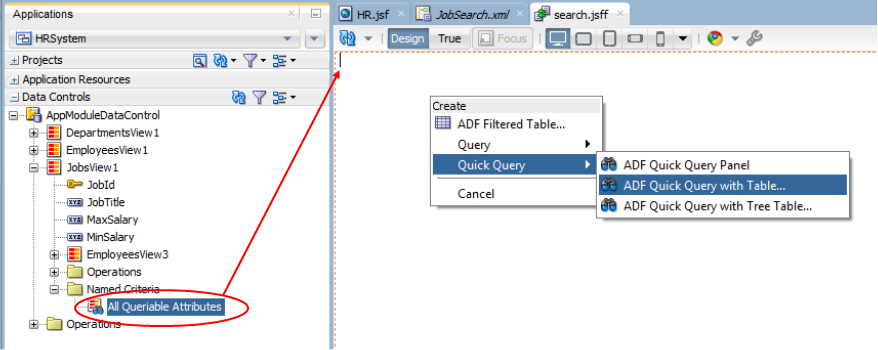
- Expand the Data Controls > AppModuleDataControl > JobView1 > Named Criteria and select the All Queryable Attributes.Drag the All Queryable Attributes onto the editor and drop it near the top left of the page. A the popup menu will appear. Select Quick Query > ADF Quick Query Table...
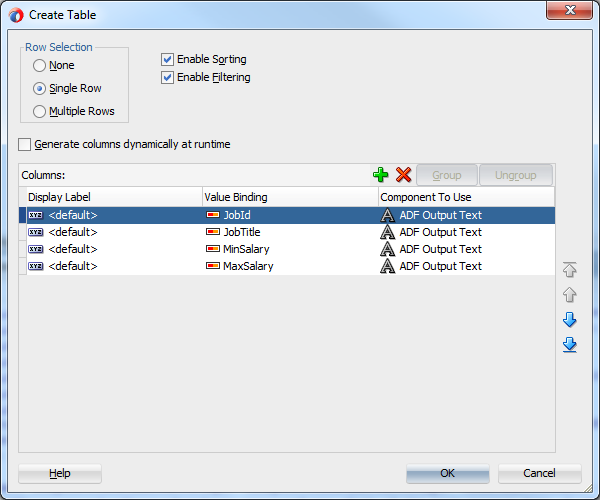
- In the Create Table pane, set the Row Selection to Single Row and select both Enable Sorting and Enable Filtering check boxes.Then click OK.
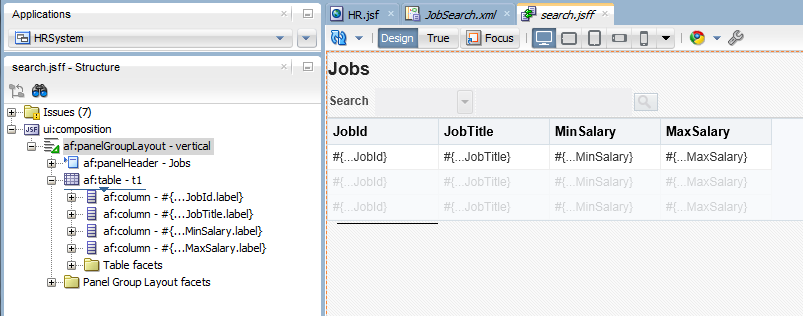
 The Structure pane and editor area should look like the following image.
 Save all your work
 - Make a change to the JobId and convert it to a different component.In the editor, right-click the JobId outputText and from the menu, select Convert To...
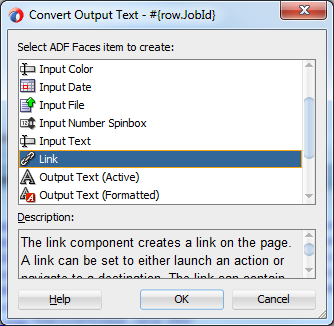
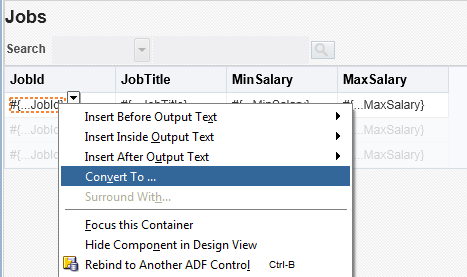 In the Convert Output Text pane, scroll down and select Link. Then click OK.
 In Confirm Convert pane, ensure Value is selected and then click OK.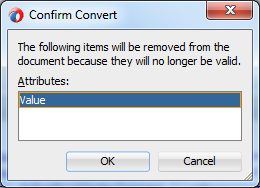
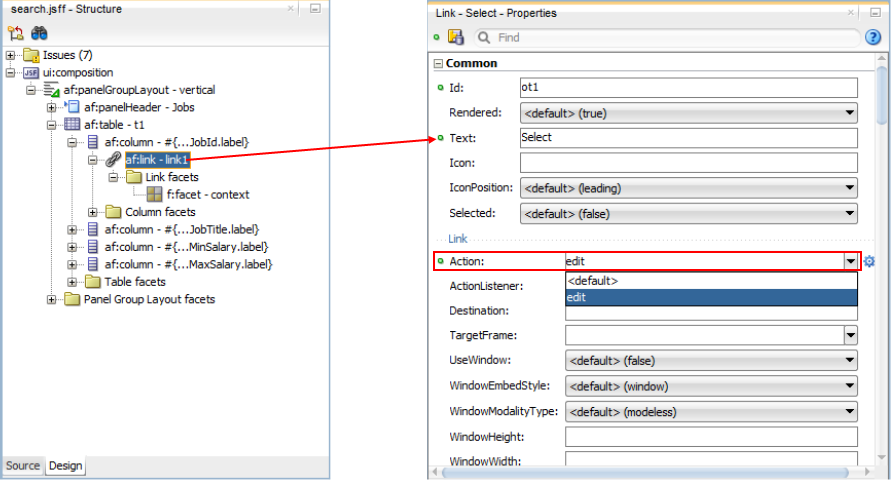
- Next, set a couple of properties for the link.In the Structure window or in the editor, select the link. Then in the Properties window, set the Text property to Select and then, using the dropdown, set the Action property to edit.Save your work.
- Next, create the edit page.Go back to the JobSearch task flow and double-click the edit view.
 The values in the create page should be fine. Check that yours look like the image below. Then click OK.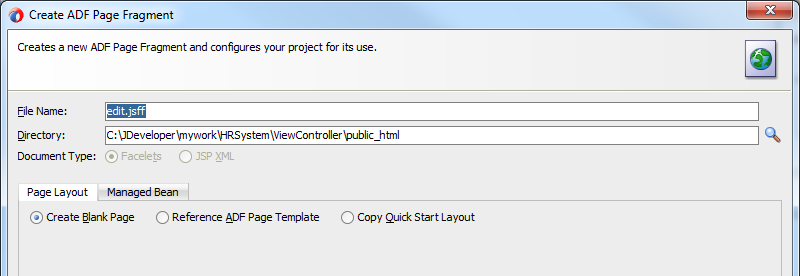
- From the Data Controls window, drag the JobView1 collection and drop it on the edit page.In the popup menu, select ADF Form.
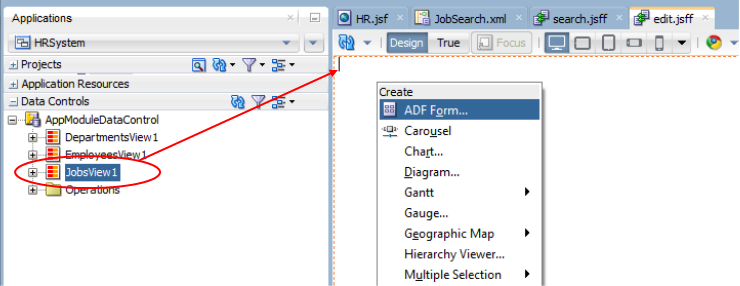
- In the Create Form pane, select the Submit check box.Then click OK.
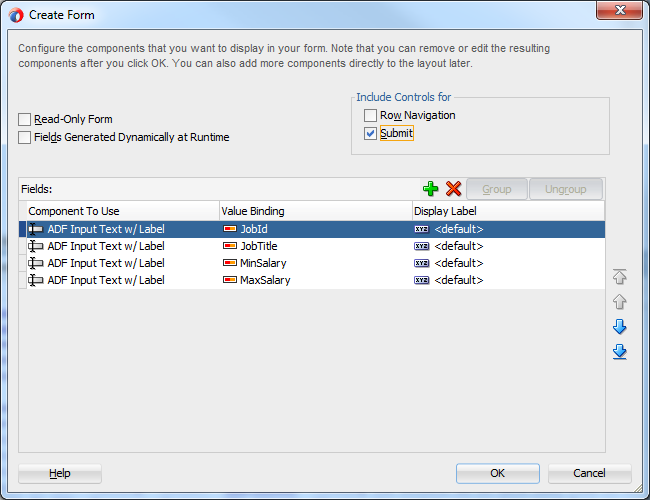 The Structure window and editor should look like the image below.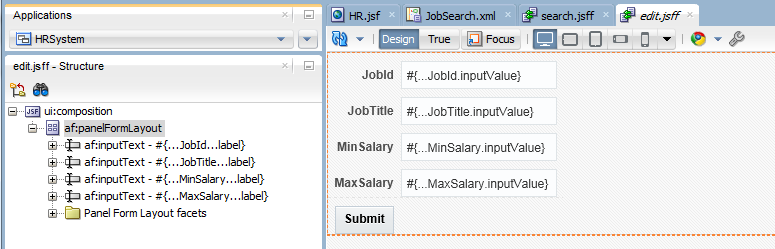
- Next, modify some properties to commit changes.First find and select the Submit button. Change the Text property to Save and Action to back.
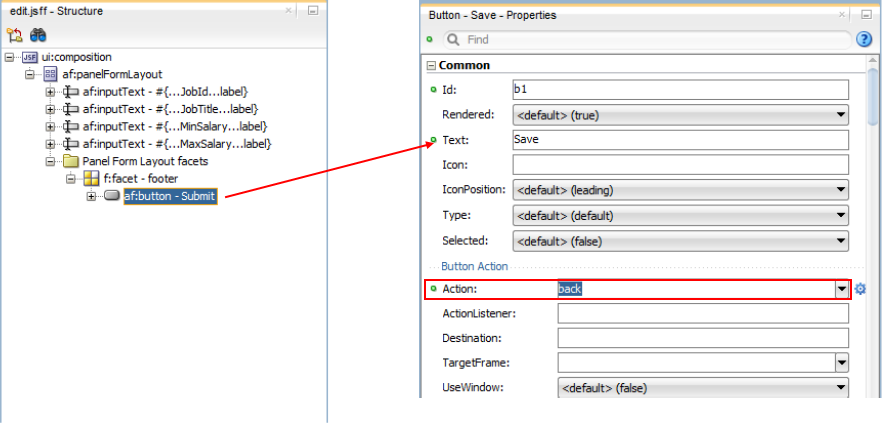
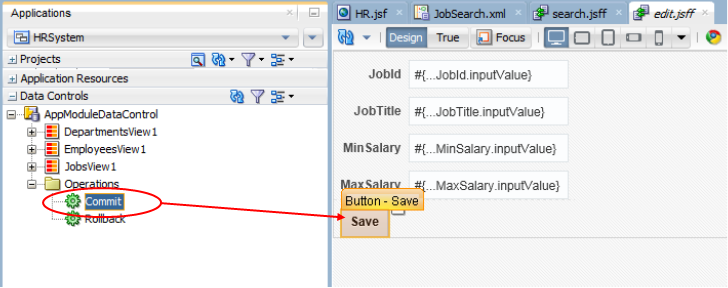
- Next, add the commit functionality.In the Data Controls window, expand the Operations node. Select the Commit operation and drag, then drop it on the Save button.
 In the popup pane, select properties that should remain at their current values. The unselected properties will be updated to new values.Select the text, disabled and action properties.Then click OK and Save all your work.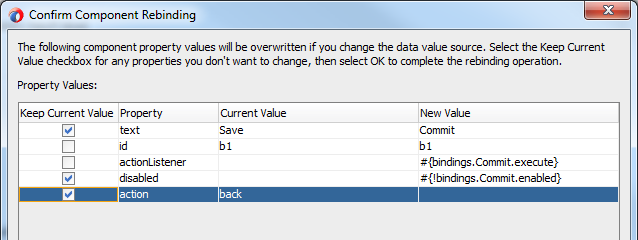
- Now, lets work on the final panel box in the HR page.Open the HR page in the editor and select the af:panelBox - PanelBox4.Set the Text property to Job Search.
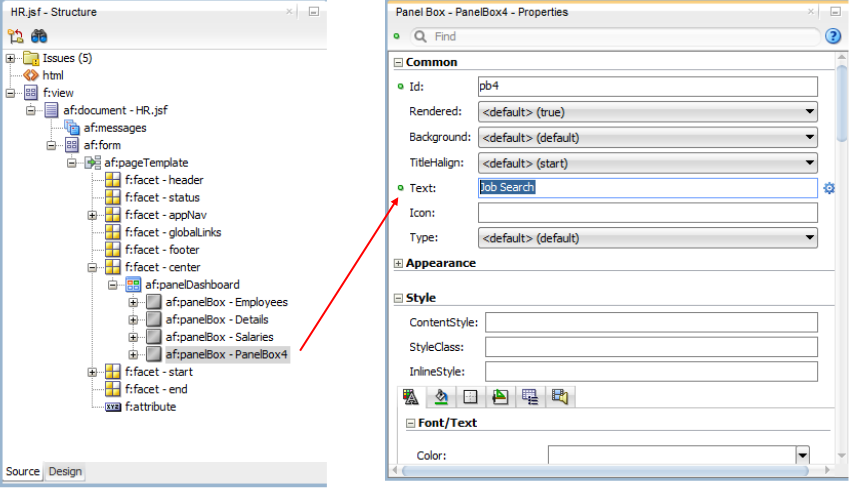
- In the Applications window, expand the ViewController > Web Content > Page Flows nodes and select the JobSearch task flow.Drag the JobSearch page flow onto the HR page and drop it on the Job Search panel box.In the popup menu, select Region.
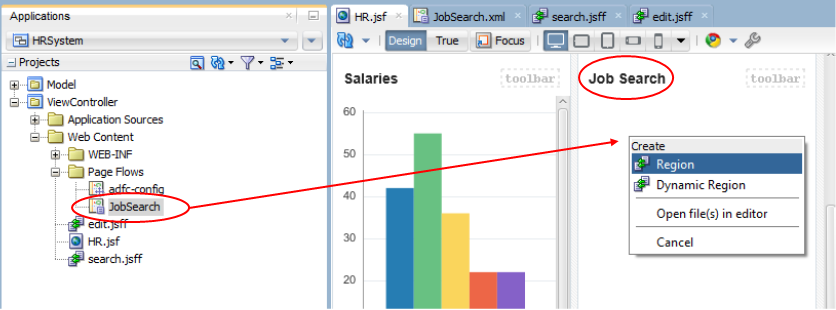 The Structure window should display the region, nested in the Job Search panel box. If it is not, move so it is.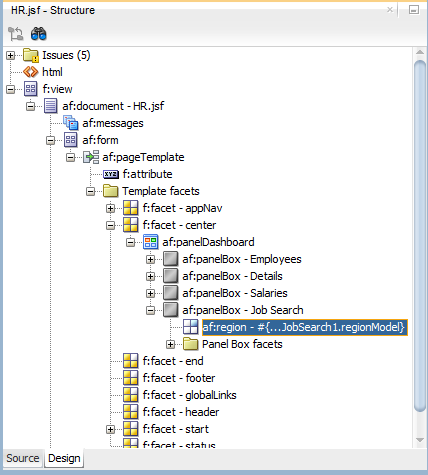
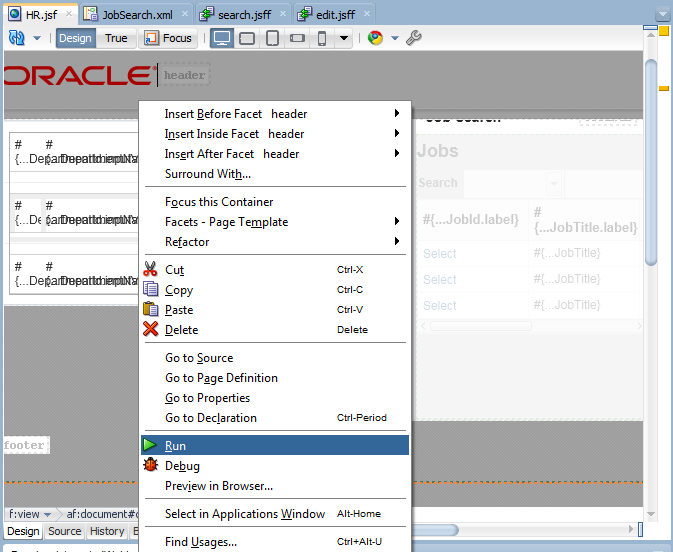
- Save your workThen, right-click the HR page and select Run.
- When the page opens, move the cursor to the Job Search panel box.Set the Search property to JobTitle and then enter M in the search box. Then press Enter.All the job titles that begin with M are displayed.
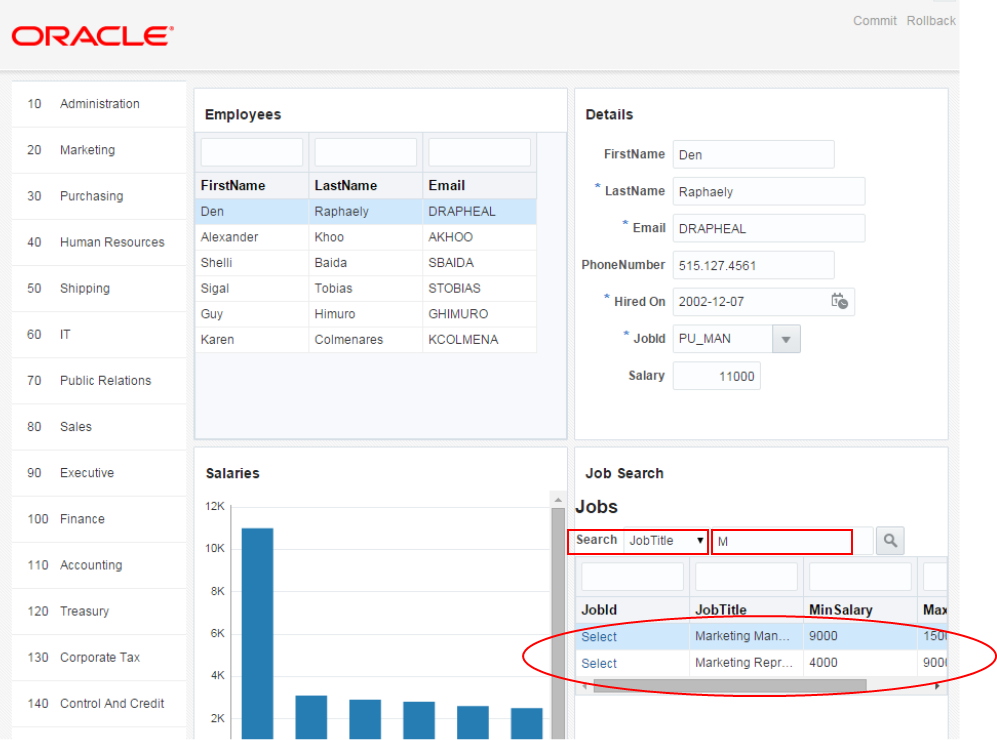
- Next, test the edit page. Click the Select text for one of the jobs .
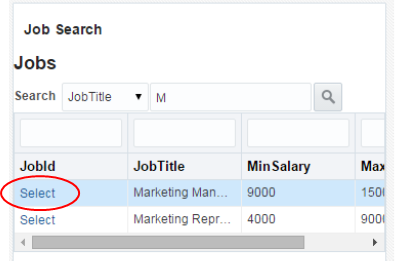 This link will use the edit flow and navigate you to the edit page.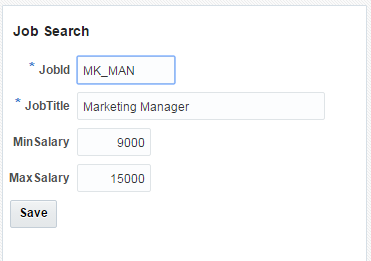
- Set the Min Salary to 10000 and click Save.
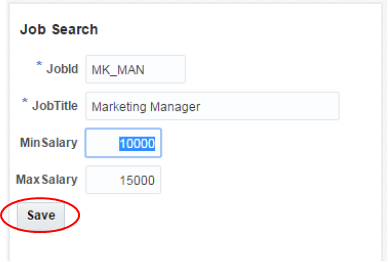 You will return to the search page, with the new minimum salary displayed.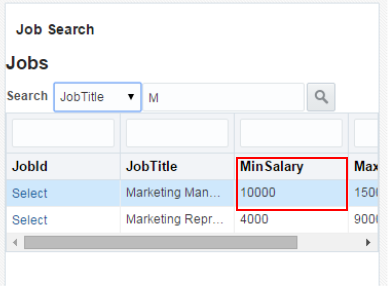
- As a final task, .In the Component window, expand the Operations node and scroll down to the Drag and Drop section.Select the Component Drag Source. Then drag it to the Structure window and drop it on the Employees panel box.
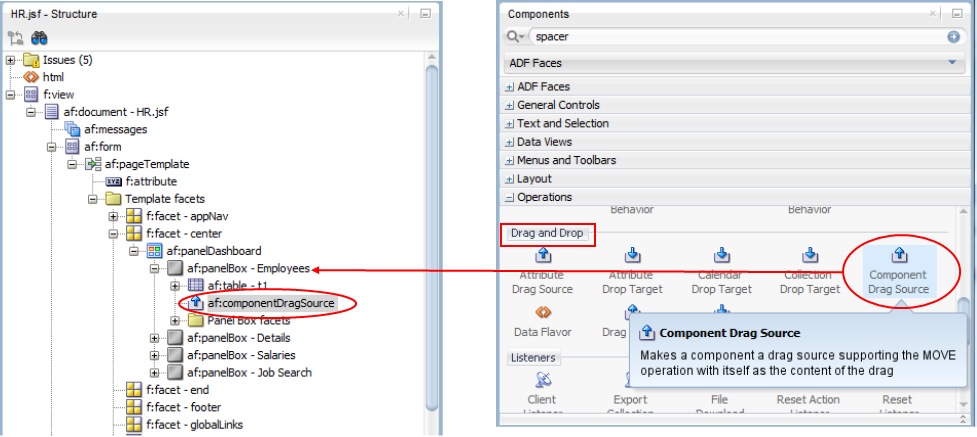 Repeat the same process and add Component Drag Source components to each of the remaining panel boxes. Each of the four panel boxes should have their own drag component.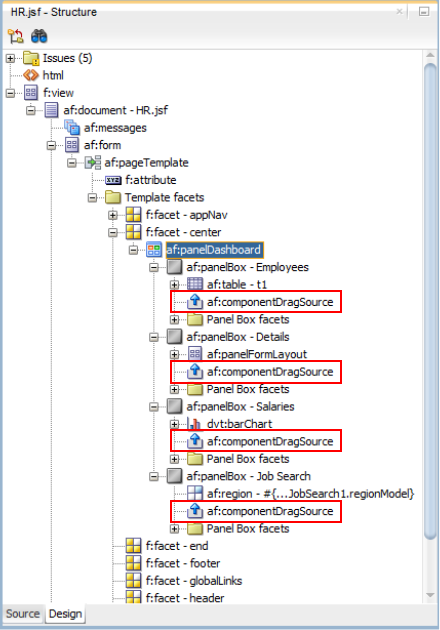
- Save your work.Then, right-click the HR page and select Run.
- In the running page, notice the handle icon at the top and center of the panel box.
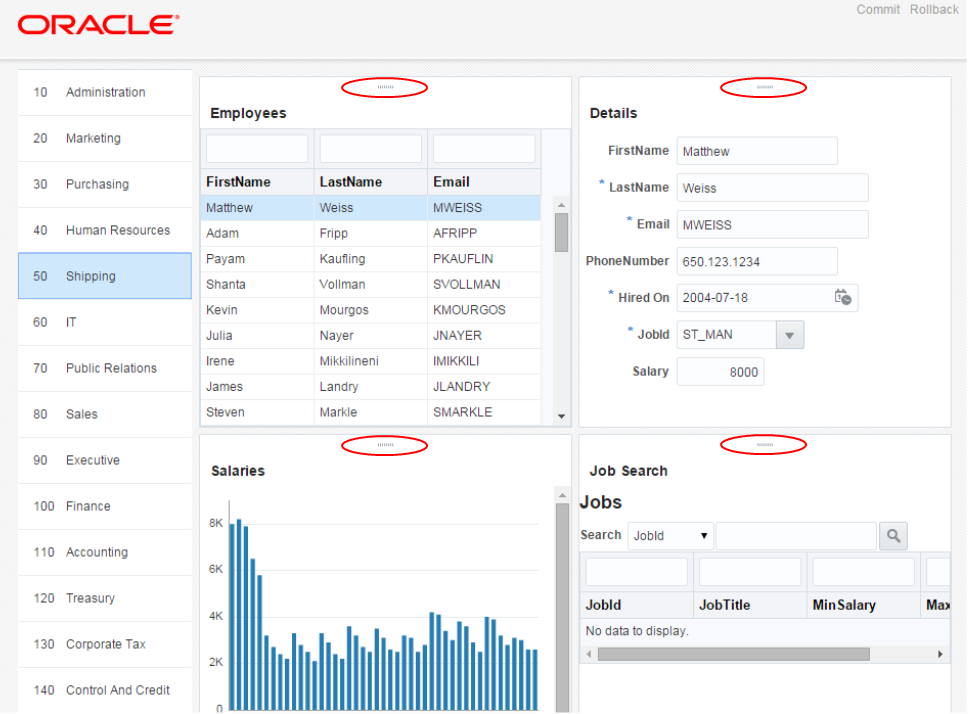 With your mouse, select and hold one of the handles. Then move it to a different place on the page and release.
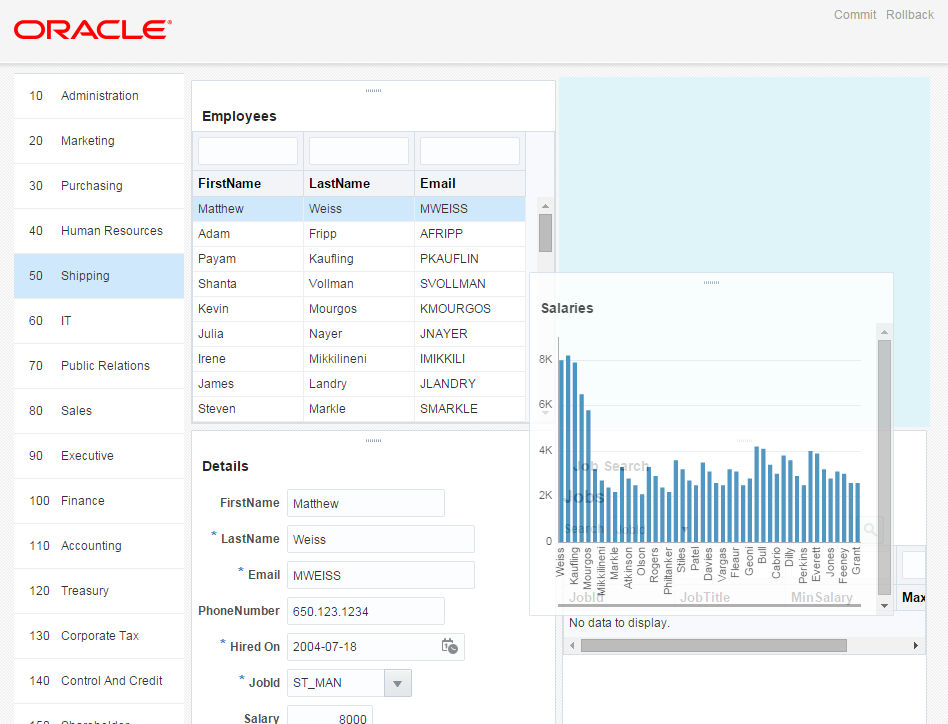 The new location of the panel box remains until the page is reloaded.