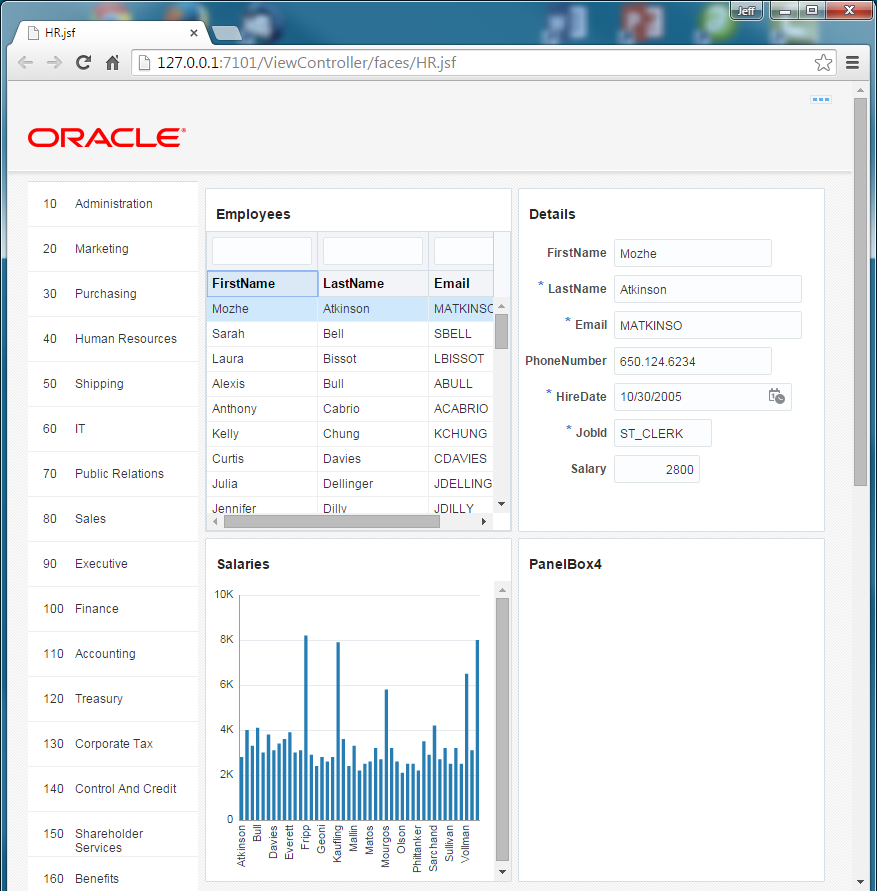
You enhance the user interface by adding a table of employees and including the ability to do column selection, by reordering the fields in one of the panels, and by binding the business components to a chart . You do this with simple drag and drop operations - behind the scenes the ADF Model layer handles the data binding for you.
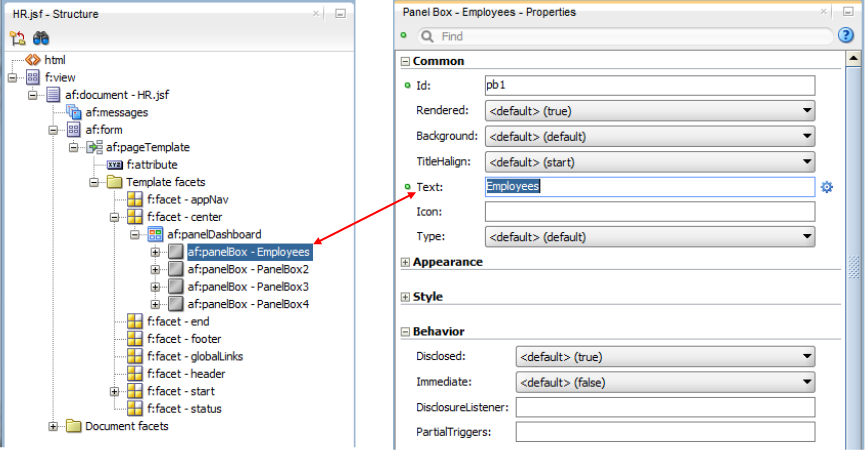
- Back in the Structure window of JDeveloper, select the af:panelBox - PanelBox1.Set the Text property to Employees. Save your work.
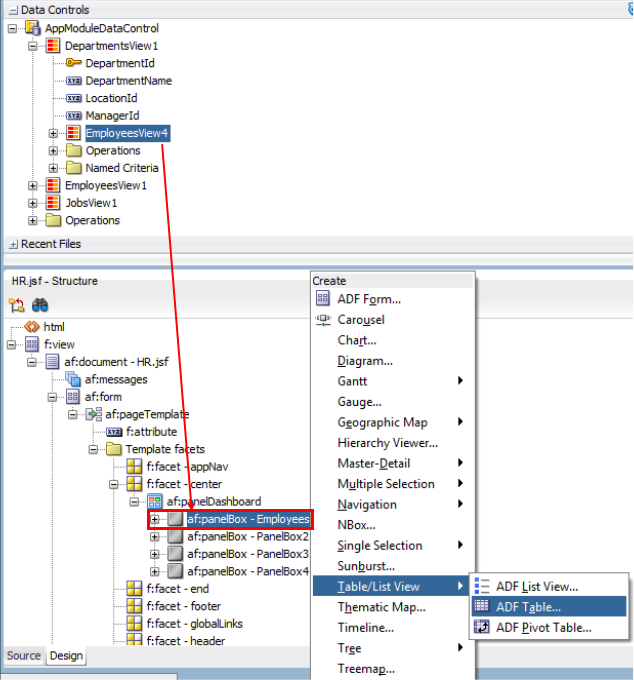
- Next, add some data from the Data Controls window.Expand the AppModuleDataControl > DepartmentView1 nodes to expose EmployeesView4. Note that these are the "detail" employees for the "master" departments - they are linked and therefore at runtime, the employees you see in this view object are the ones who belong to the selected (or viewable) department.Drag the EmployeesView4 onto the Structure window and drop it on the af:panelBox - Employees node. In the popup menu, select Table/List View > ADF Table.
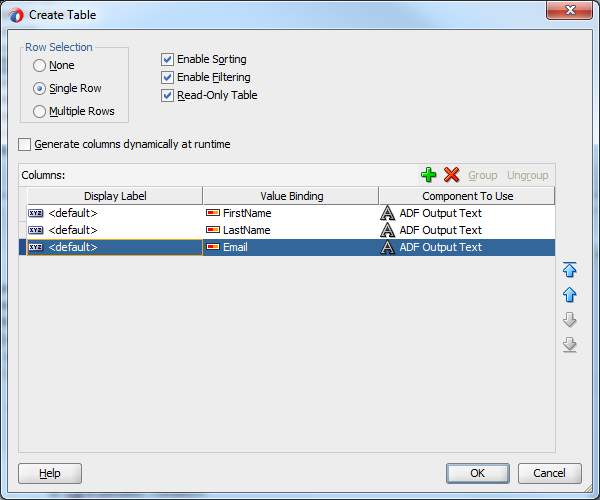
- In the Create Table pane, allow for Single Row selection.Enable Sorting, Filtering and set the table to be Read-Only.Delete all the columns except FirstName, LastName and Email. Then click OK.
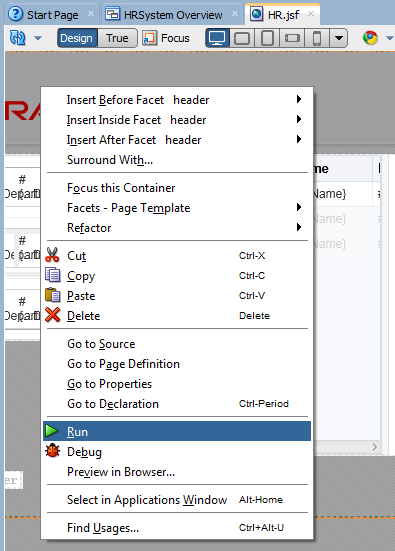
- Save all your workSince you've added new data to the page, it must be deployed again. Right click on the page and select Run. This will compile your project, build it, and launch the integrated WebLogic Server to run it. The default web browser opens to display the page. You can follow the progress of these steps in the Log window in JDeveloper.
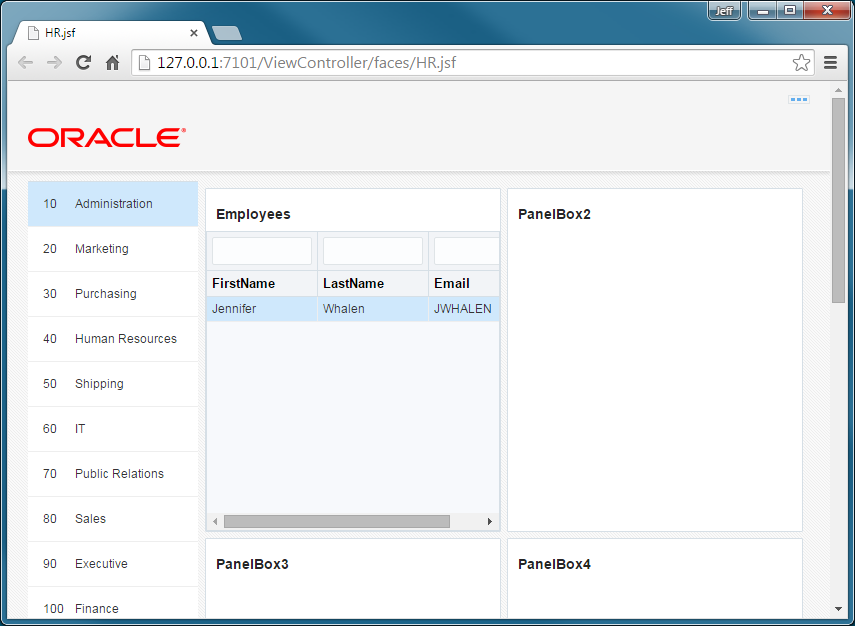
- Now you see employee records in the first panel.By default the first department's (Administration) employees populate the panel.
 Click an different department and the employee records automatically update.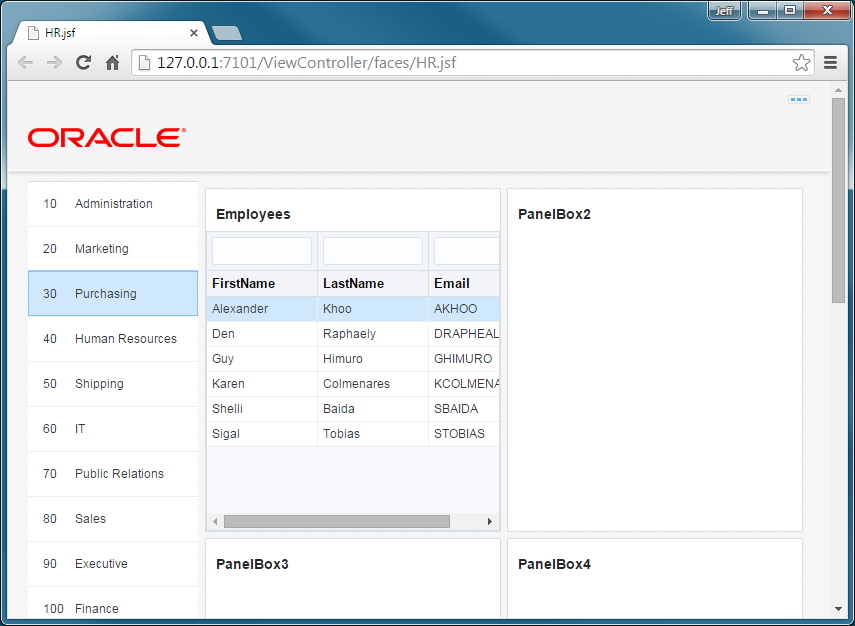
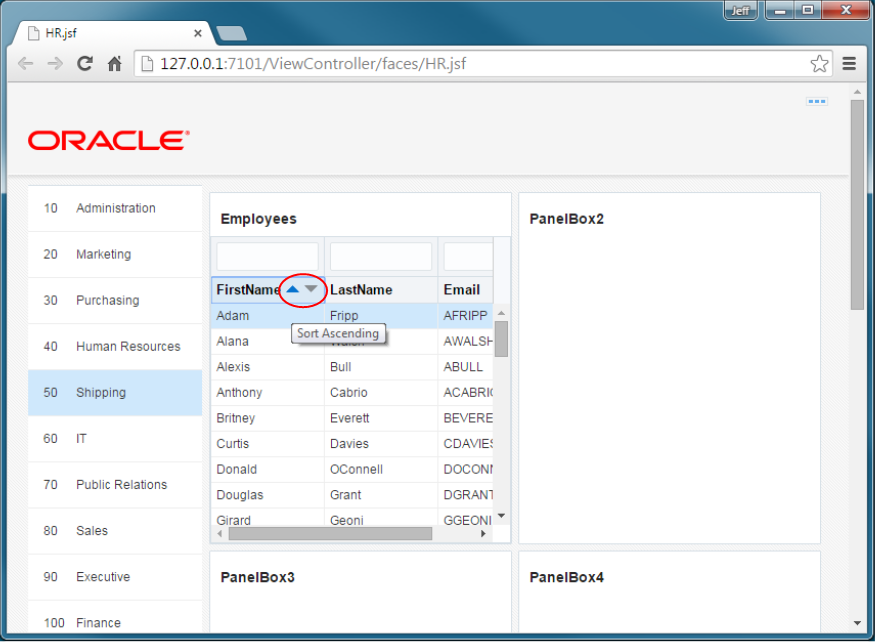
- Select the Shipping department.Then, move the mouse over the FirstName heading to reveal two sorting icons. Move the mouse over the upward triangle and a Sort Ascending tool-tip displays.You may sort on any item by selecting the ascending or descending icons.
- Click and hold the LastName column prompt. Then, drag it to the left and reposition it before the FirstName column.
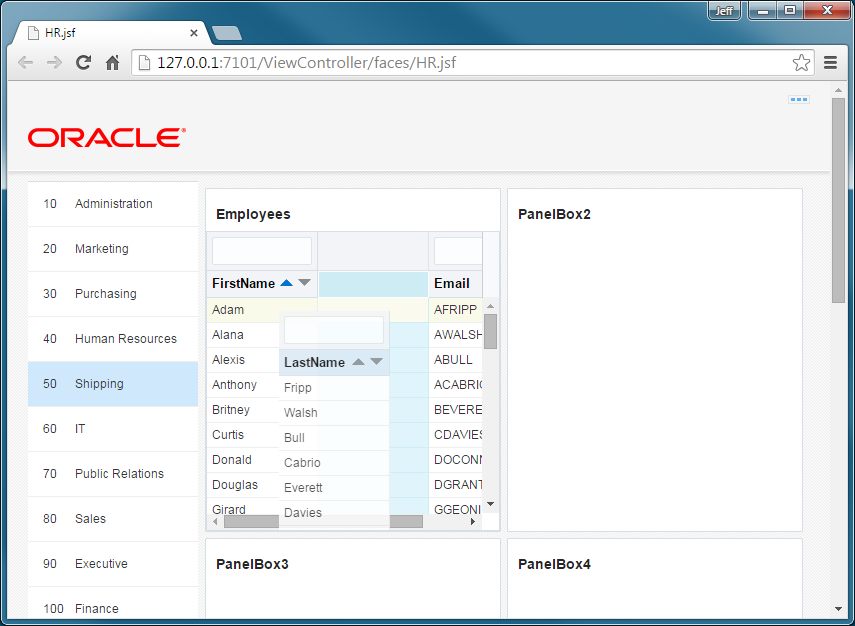
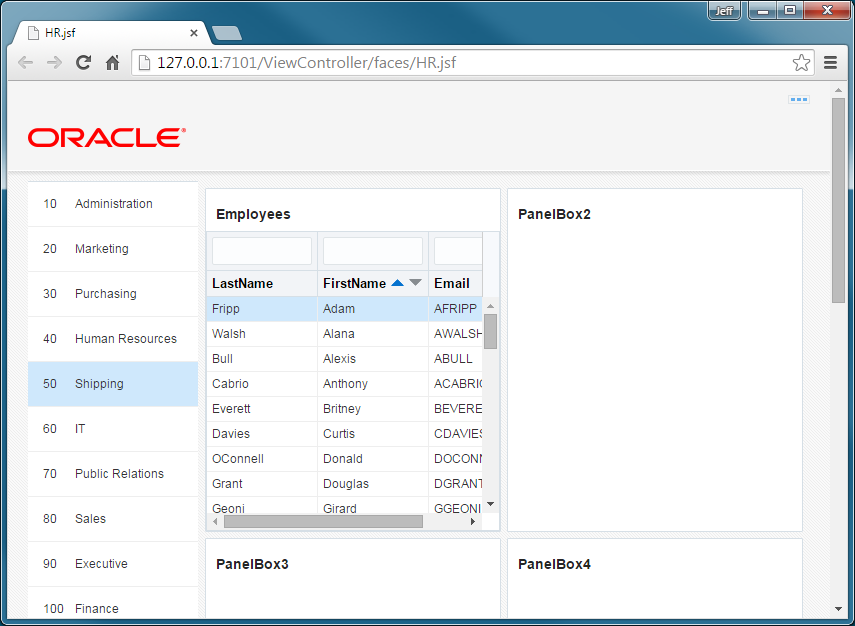
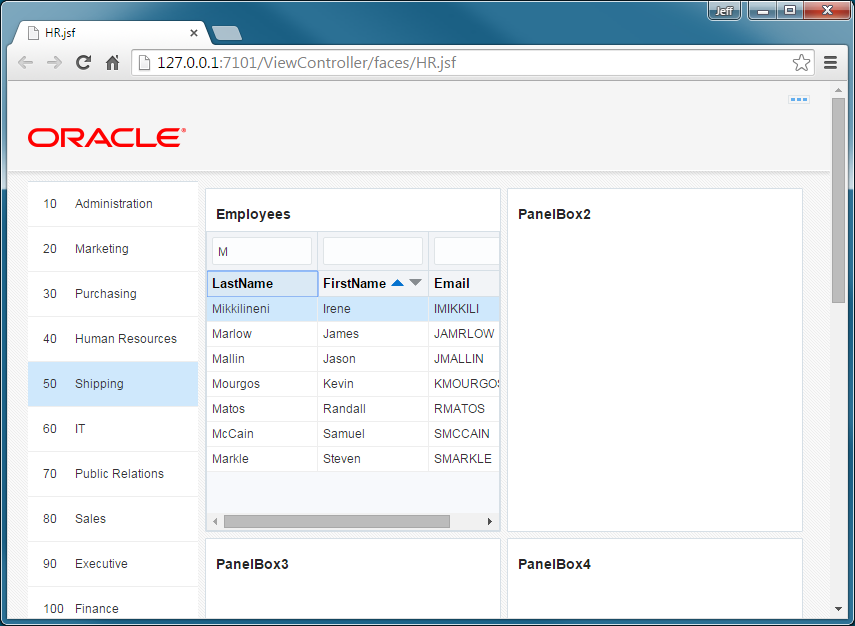
- Place the cursor in the field above the LastName column. Then, type "M" and press the Enter key to filer only those employees who's last name begins with "M"
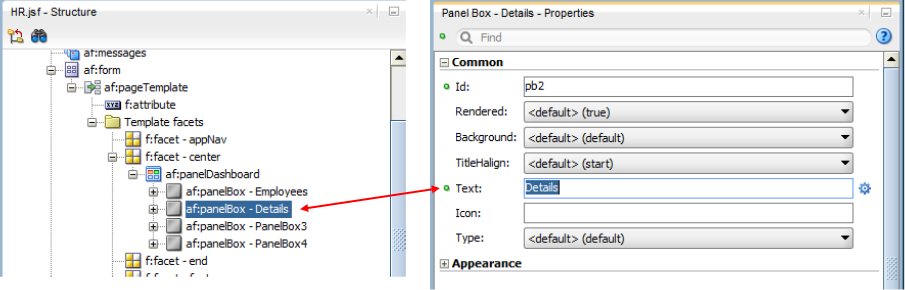
- Back in JDeveloper, lets work on the second panel box.Select the second panel box and set the Text property to Details.
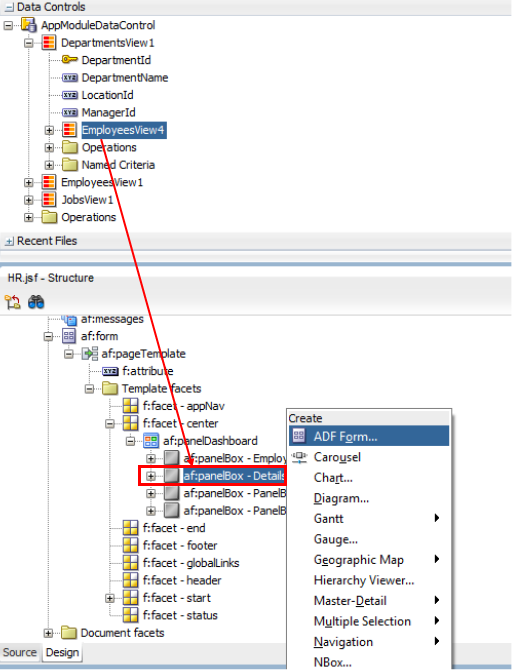
- From the Data Control window, drag the same EmployeesView4 collection, as you did earlier, and drop it on the Details panel box.In the popup menu, select ADF Form.
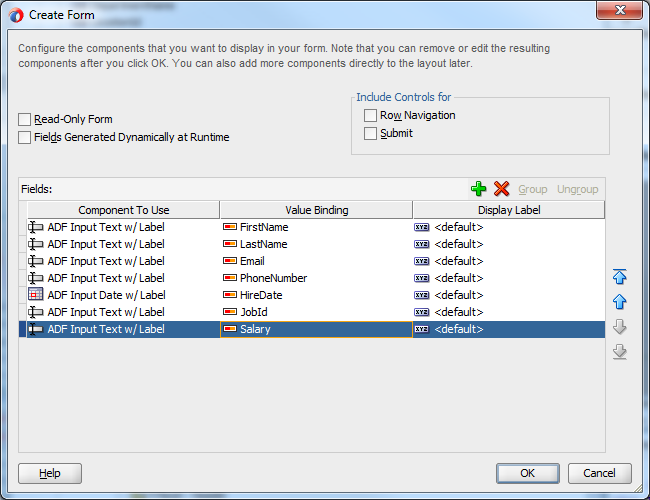
- In the Create Form pane, keep the FirstName, LastName, Email, PhoneNumber, HireDate, JobId and Salary and remove the rest of the fields.Then click OK and Save your work.
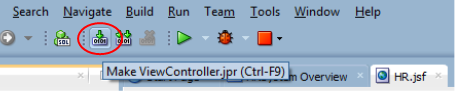
- You can click the recompile button, just below the menu bar of JDeveloper, to move these changes forward .
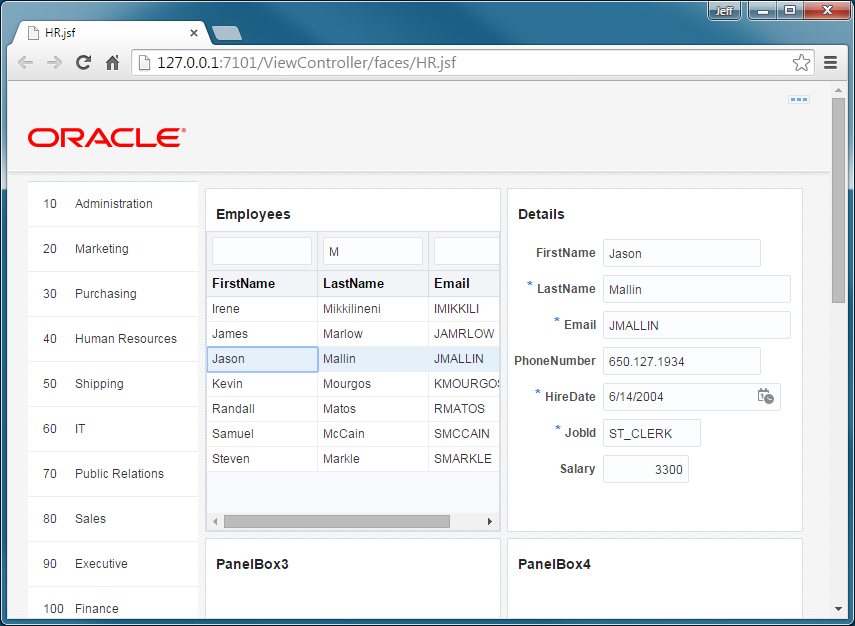
 Then, reload the browser page to see the second panel contains detail data of the selected employee.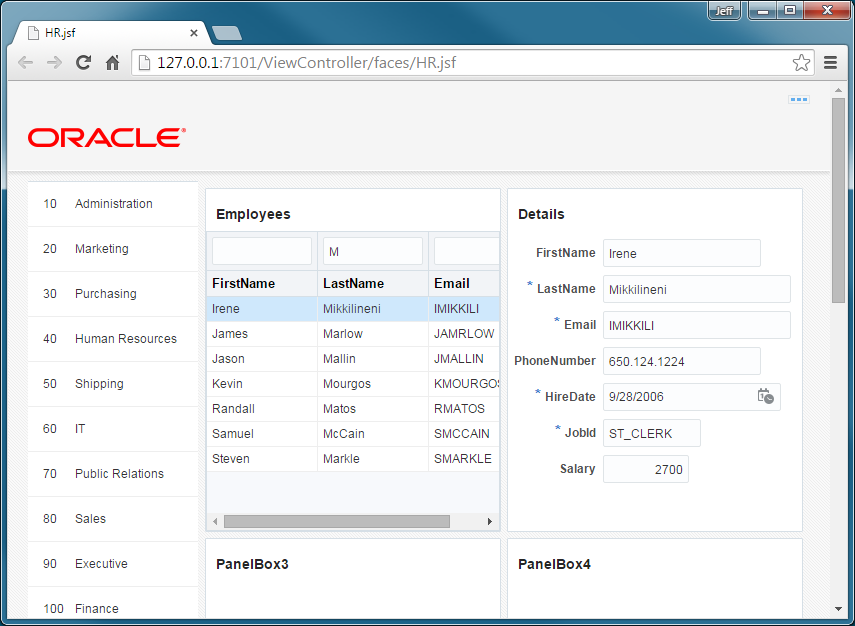
- Select a different employee and notice how the detail refresh with new values for the selected employee.
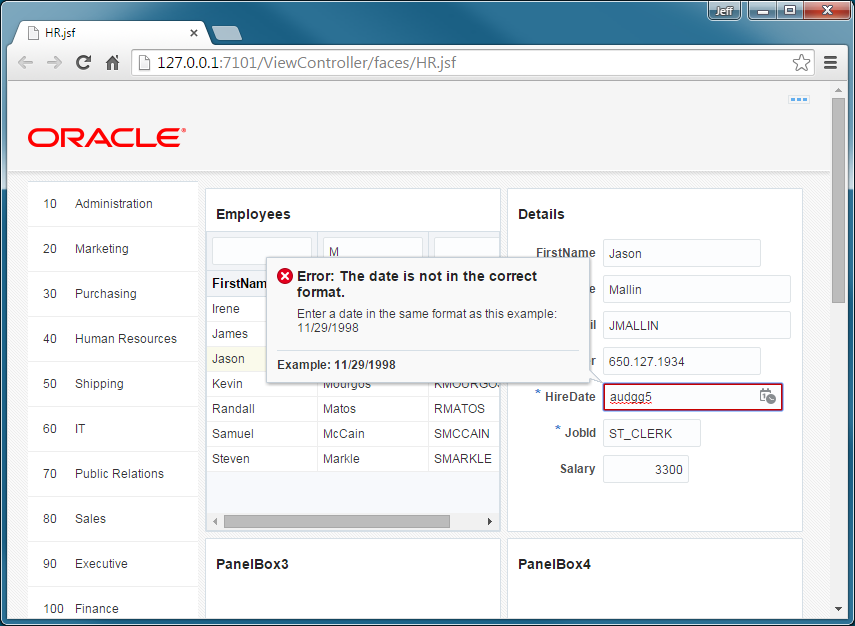
- If you input an invalid value for the date filed, you automatically receive an error.
 You also get a calendar icon, to the right of the field, to pick the correct date.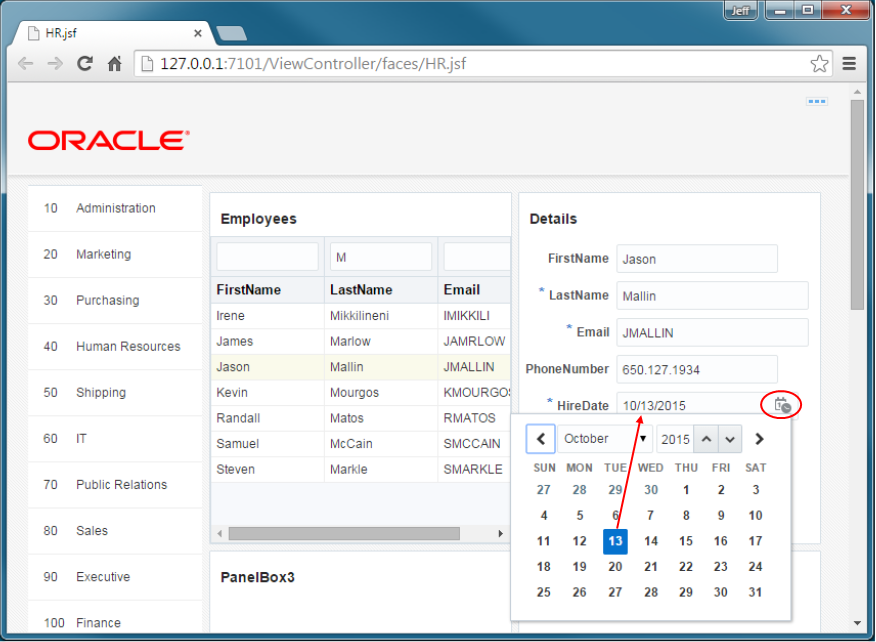
- Next let's work on the third box. Select it and set the Text property to Salaries.
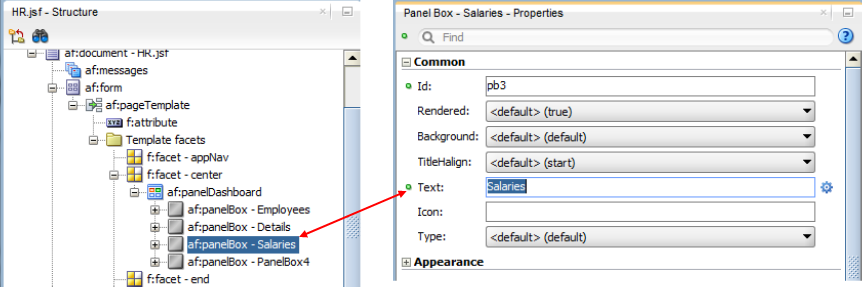
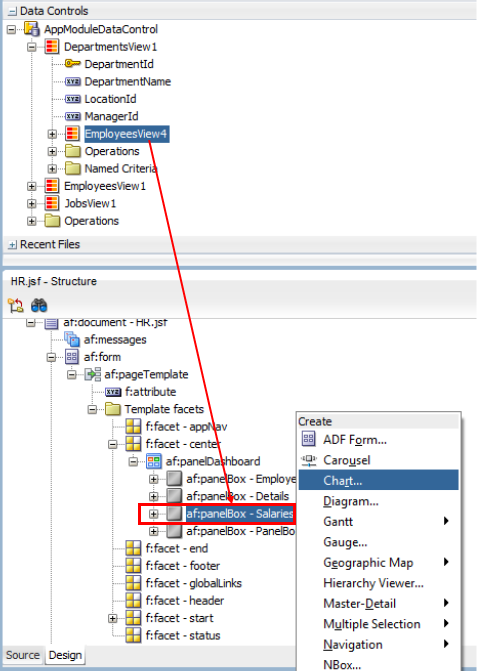
- From the Data Controls, drag the EmployeesView4 to the Structure window and drop it on the Salaries panel box.In the popup menu, select Chart....
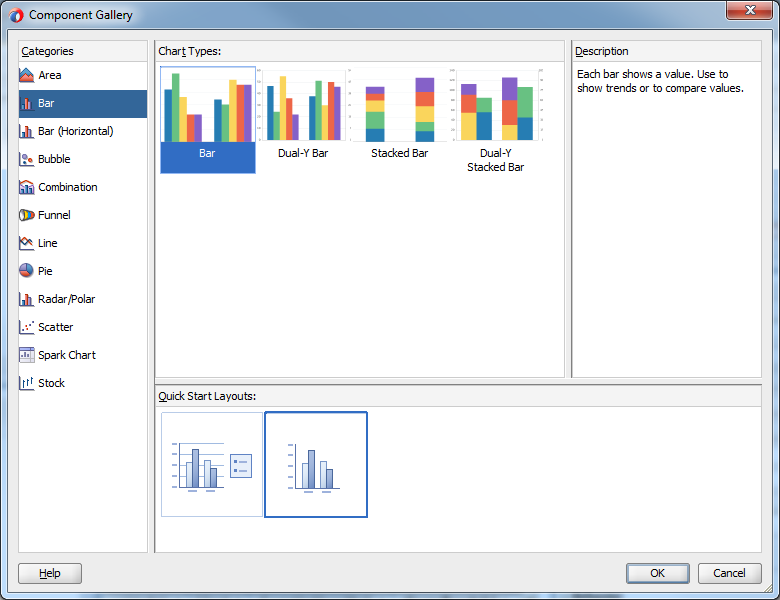
- When creating a chart, the same data control can be used to make a variety of different charts.For our purposes, select the Bar category, ensure the Chart Type is set to Bar and use the second Quick Start Layout.Then click OK.
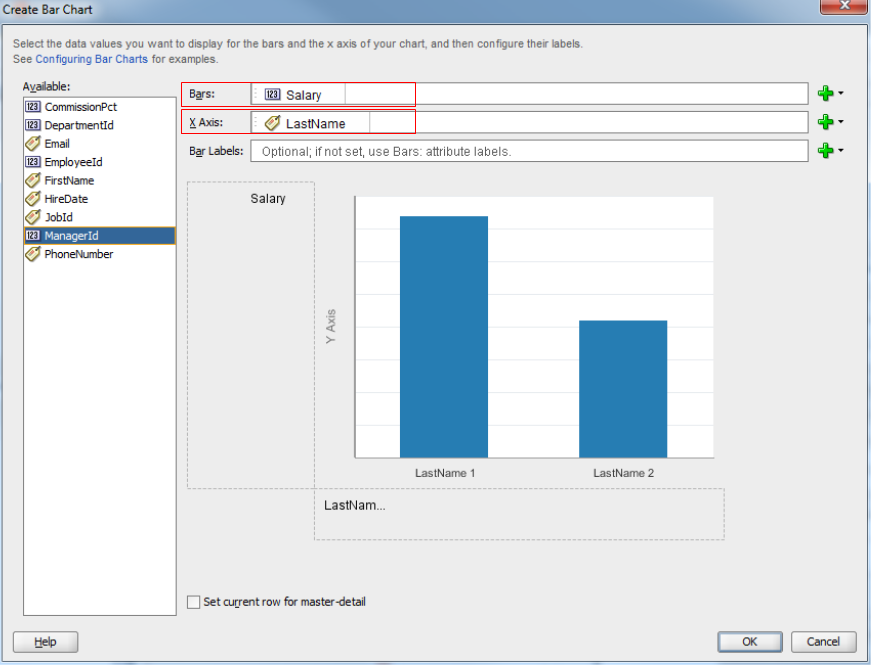
- Once you decide on a chart, you then you determine the bars and X axis fields to use.From the Available column, drag the Salary to the Bars field and drop it. Then, drag the LastName to the X Axis and drop it.Then click OK.
- Like earlier, Save your work, recompile and reload the browser to see the changes.Now the Salaries panel shows all the employees in a department and their salaries.
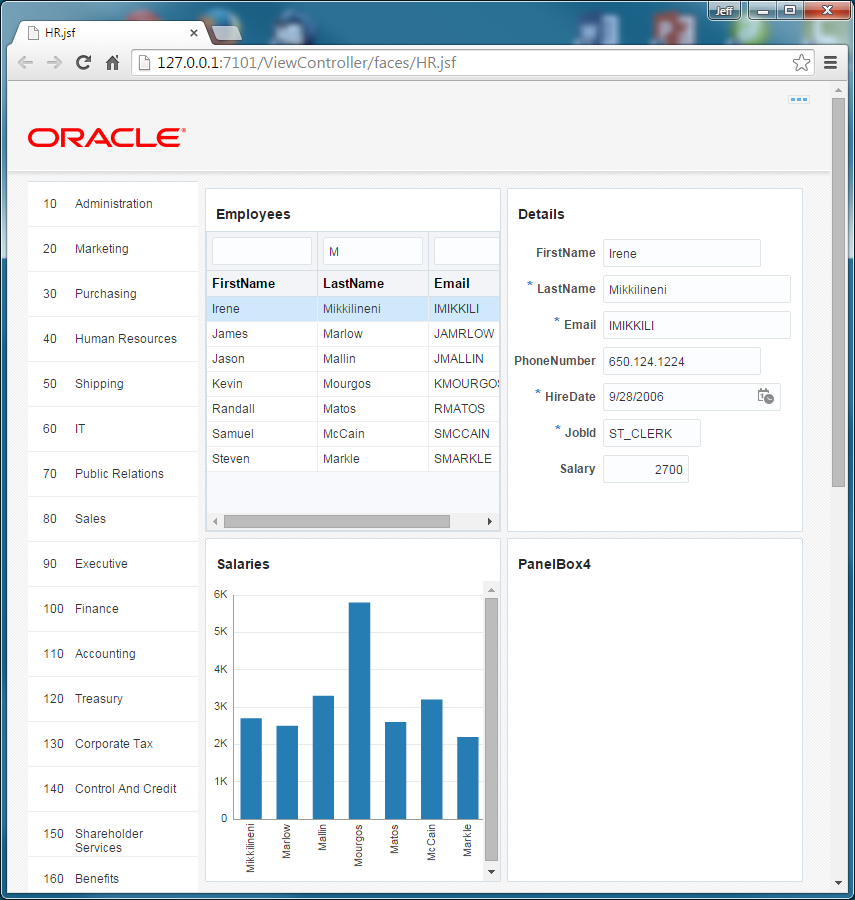
- If you remove the filter in the Employees panel box, then the bar chart updates to include all the shipping employees salaries.
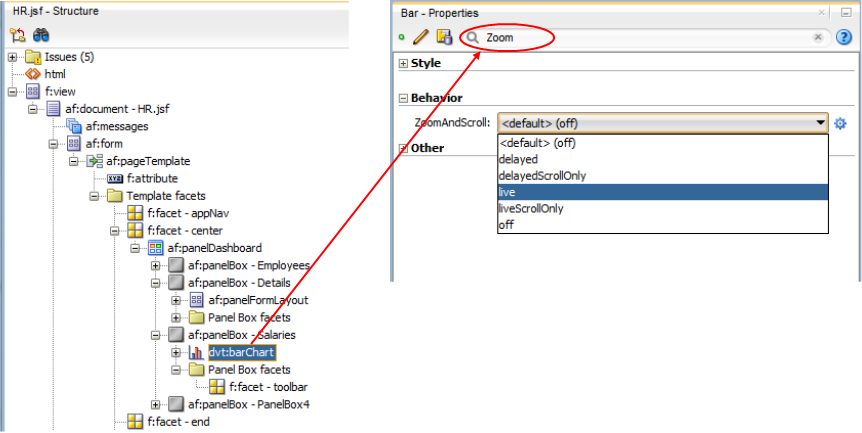
- Next, modify the chart.Select the dvt:barChart and then in the Properties, put the cursor next to the magnifying glass and enter Zoom. This allows you to filter and find properties easierThe ZoomAndScroll property should be shown. Change the value to live.Save your work.
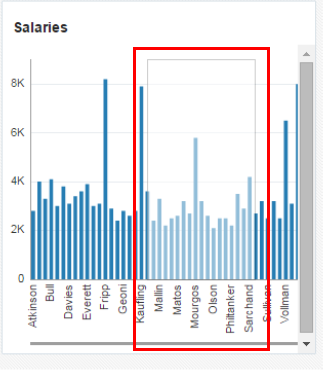
- Recompile the application and then reload the browser.In the Shipping department, with no filter on the Employees, there are many salaries to show and you are not able to see all the names.Place the cursor over the X axis and you get a cross hair cursor. Drag the cursor to highlight a portion of the chart (The highlighted portion is a lighter shade). Then release the cursor.
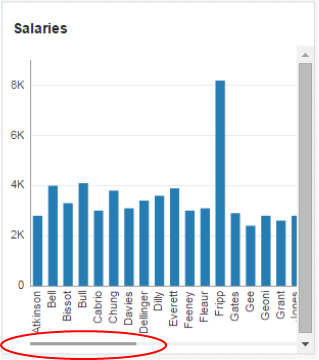
 When you release the mouse, the selected records zoom to fill the whole panel box and you have a scrolling bar on the bottom to see all the other records that are hidden from view.
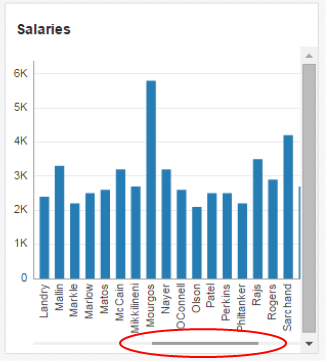 Scroll the bar to the left to see the other employee salaries.