JavaServer Faces (JSF) is a standard Java EE technology that simplifies Web development. You can create a JSF page to access the business components that you created in the previous part.
You create a form that can be used to display and modify data. You use a master-detail relationship to display information about employees in a department. To build the page you'll use Oracle ADF Faces Rich Client components. These components allow you to build an Ajax-based rich Web UI without writing low-level HTML and Javascript code.
In this step, develop a page
- Right-click the ViewController project node in the Applications window, and select New > Page...
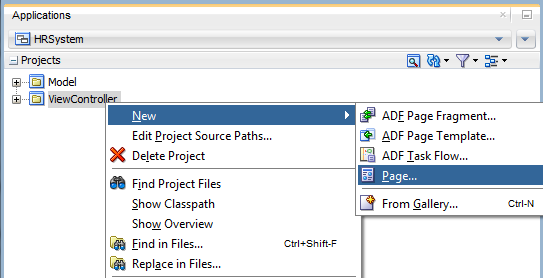 The Web part of the application is developed in a separate project called the ViewController project, which you created in the previous part of this tutorial when you created the Fusion Web application.Maintaining a separation between the Model layer and the user interface by developing them in separate projects, makes the business services layer more reusable.
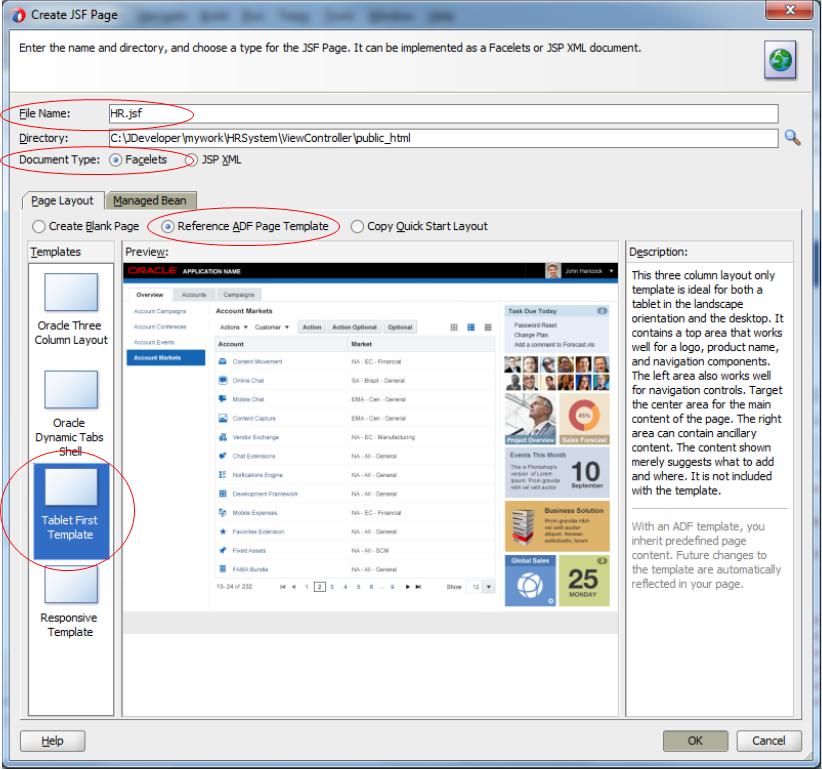
 - In the Create JSF Page pane, set the File Name to HR.jsf and ensure the Document Type is set to Facelets.Then to start building the page with a temple, select the Reference ADF Page Template radio button.In the Templates column, select the Tablet First Template and then click OK.
- By default, the center of the IDE displays the page in a visual editor.On the lower left, the page is displayed in a structured format.The properties for any selected item can be modified in the lower right.
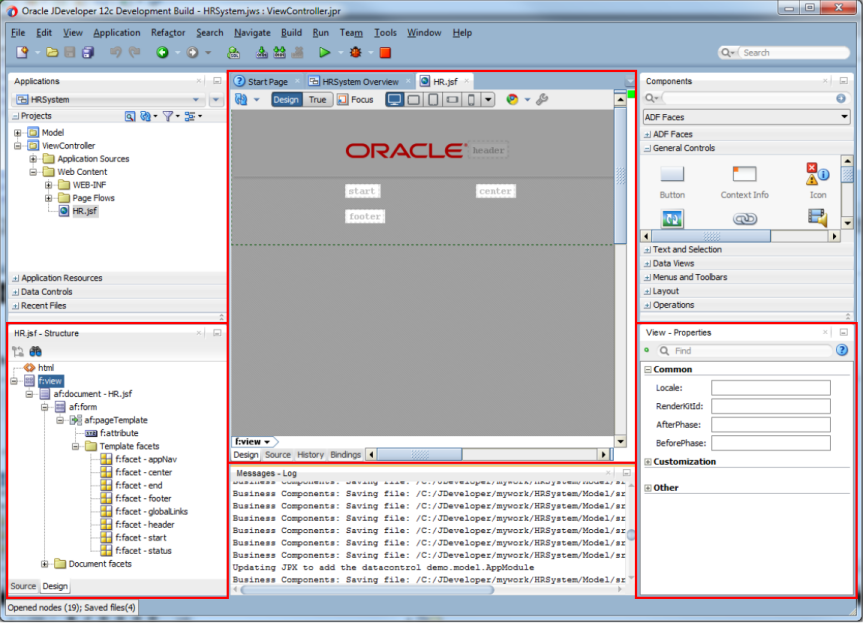
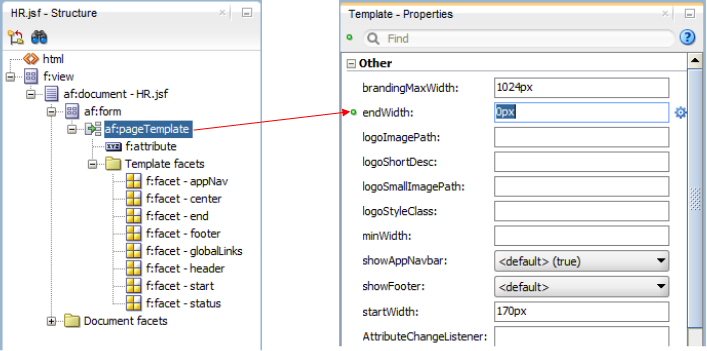
- In the Structure window, expand the f:view > af:document - HR,jsf > af:form and select the af:pageTemplate.In the Properties window, set the endWidth to 0px.
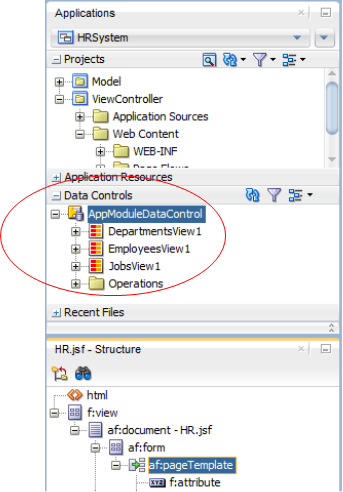
- Use the Data Controls window to add data to the page.If you expand the Data Controls window, you can see the business services that are available while developing the page.Notice the names match those from the view components you created in the Model project.
 If you expand a node you see the collections, attributes and operations.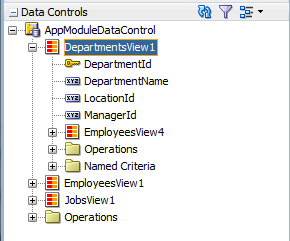
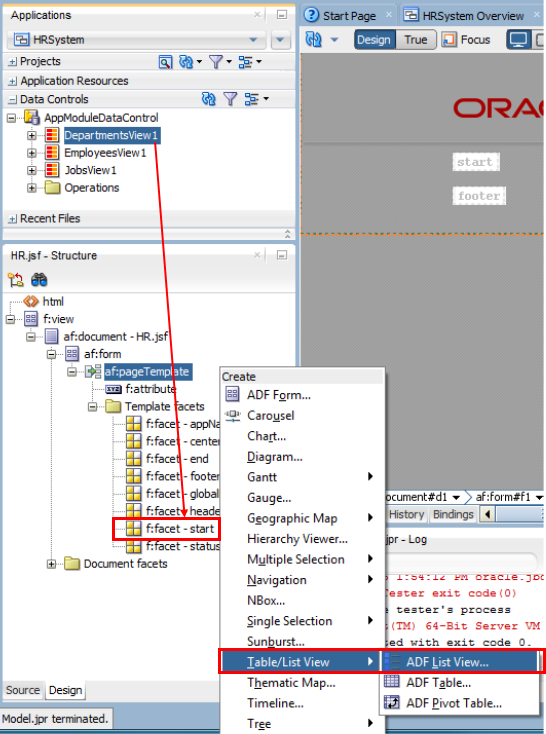
- In the Structure window, select expand the Template facets node. This is where the data will be displayed on the page. The Data Controls allow you to consume the model components and bind them to the page.Then, from the Data Controls window, select the DepartmentsView1 node. Drag it onto the Structure window and drop it on the start facet.From the popup menu, select Table/ListView > ADF List View...
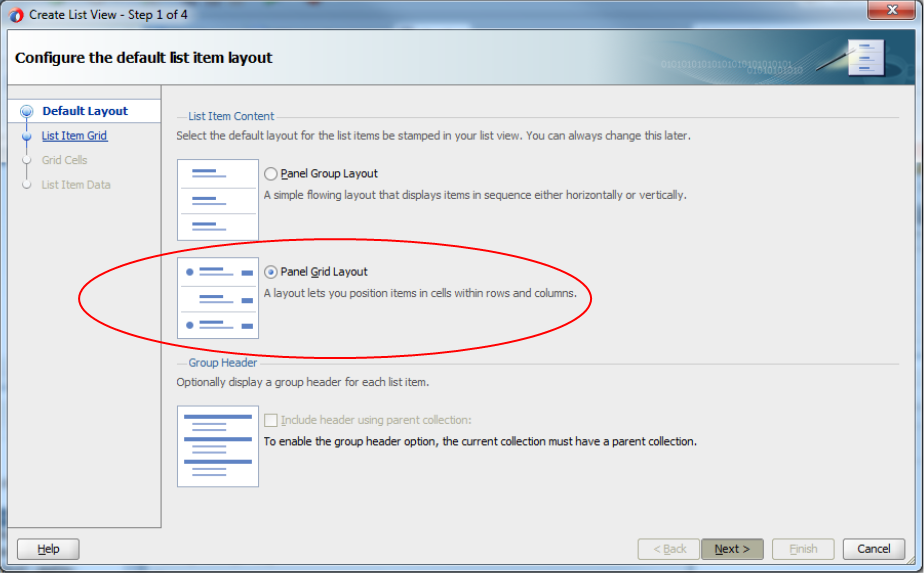
- For the layout, select the second option: Panel Grid Layout. Then, click Next.
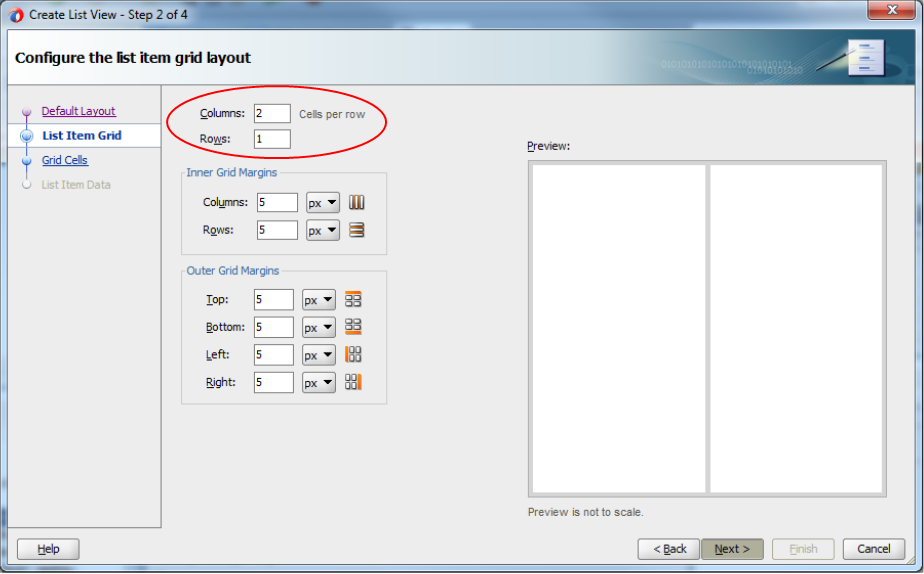
- Set the grid layout to use two columns and one row. As you change the value on the left, the image on the right reflects how the page will look.Click Next.
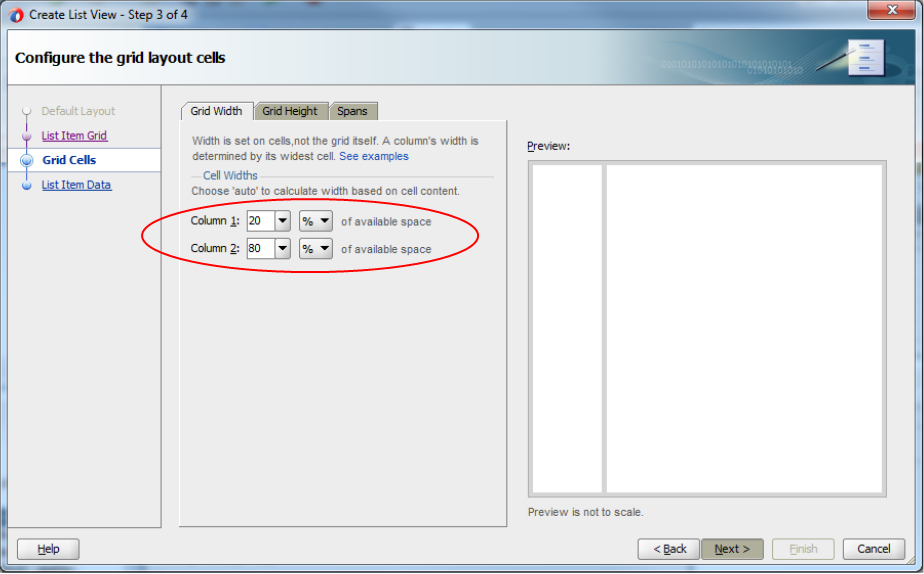
- Set Column 1 to use 20% of the space and Column 2 to use 80%. Then click Next.
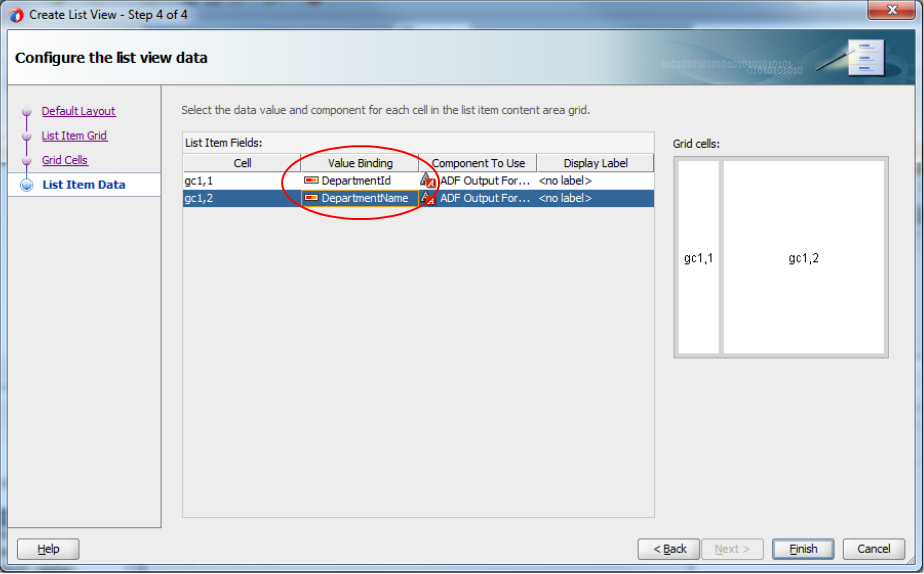
- Set the first column to display DepartmentId and the second to display DepartmentName.Then click Finish and save your work.
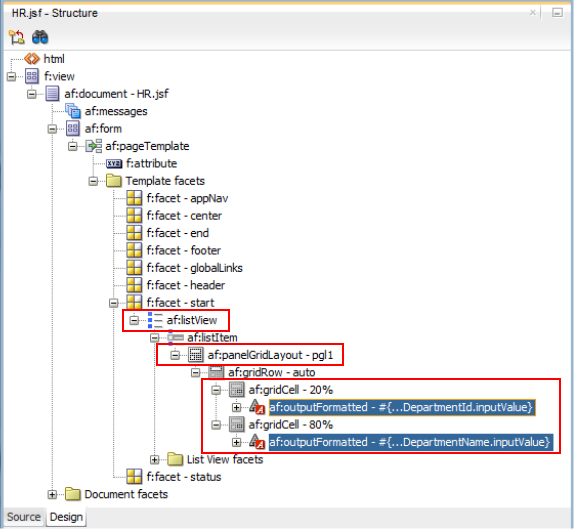
- In the Structure window expand the nodes from the screen shot below to see the list view, the grid layout, the two columns (20% & 80%) and the Id and Name.
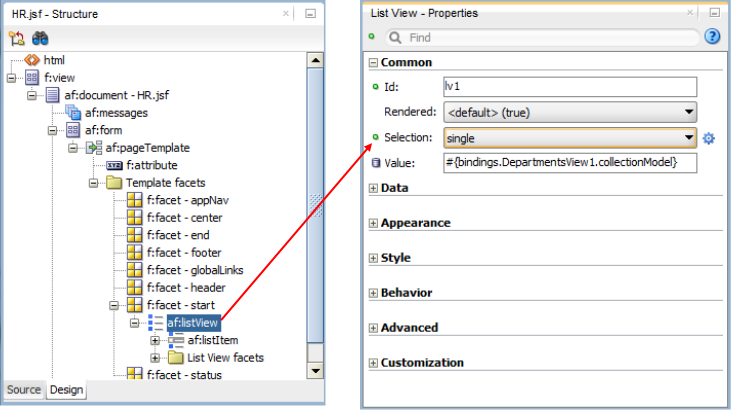
- Select the af:listView in the Structure window and then in the Properties window, set the Selection to single.
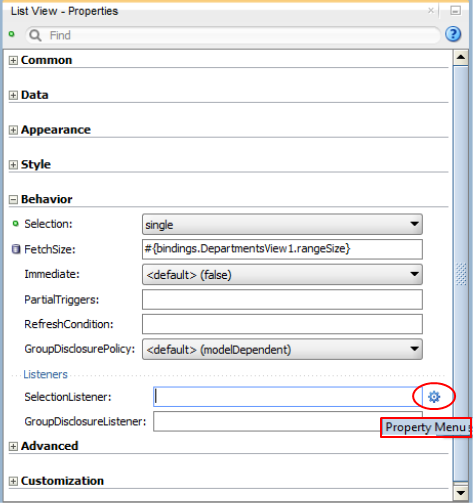
- Then, expand the Behavior node and place the cursor in the SelectionListener property.A blue gear icon will appear at the end of the line. If you hover above it with the mouse a Property Menu tool-tip will displayHere you can select from a list of built-in operations to work with the data controls.
 Click the blue gear icon and from the menu,select Method Expression Builder...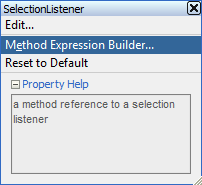
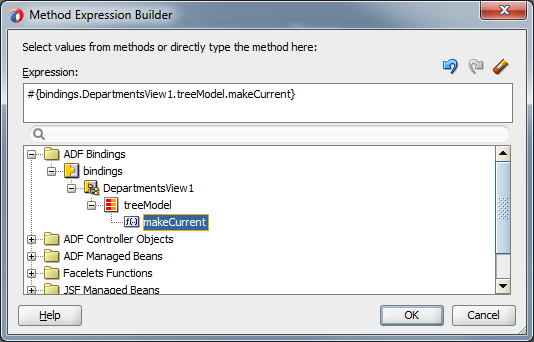
- In the Method Expression Builder, expand the ADF Bindings > bindings > DepartmentsView1 > treeModel nodes and select makeCurrent.Then click OK and then save all your work.