connect to a database and build simple backend business components that access HR schema tables.
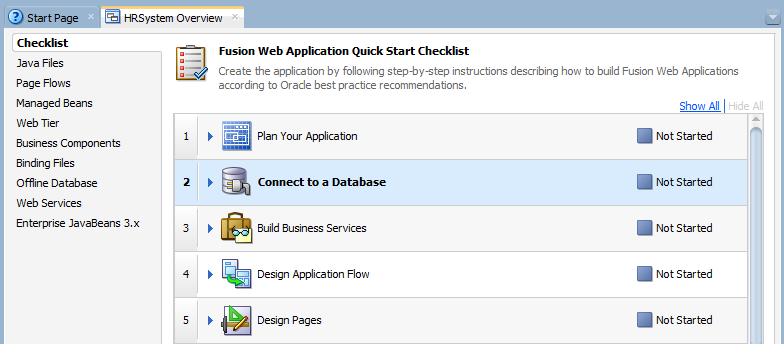
- In the CheckList Overview, click the Connect to a Database step.
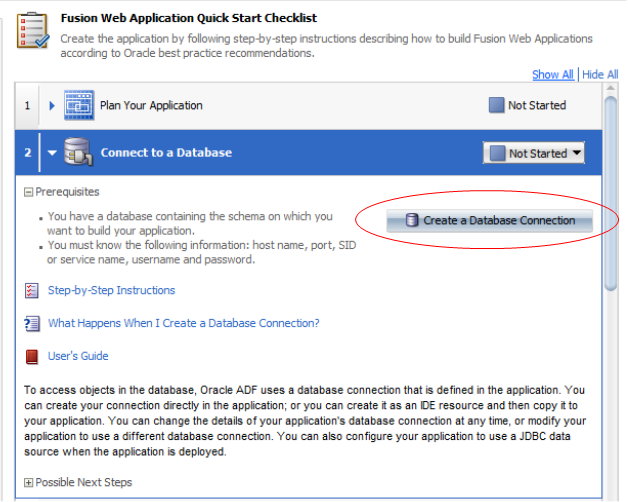
- The step expands showing useful information such as prerequisites required for performing the task and detailed instructions on how to perform the task. Click the Create a Database Connection button.
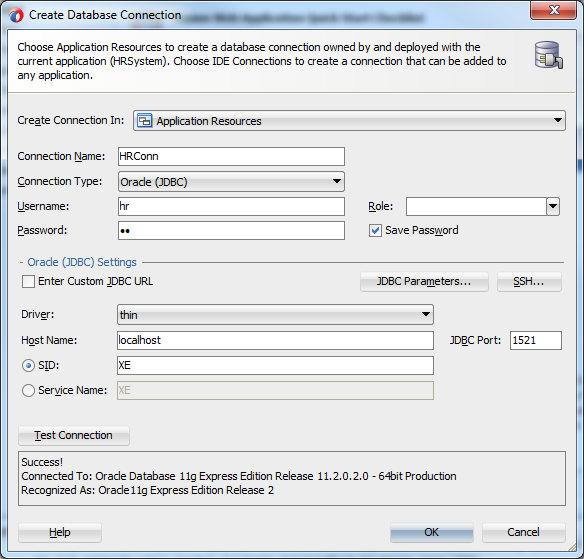
- Specify the properties for connecting to your HR schema.Enter the appropriate Oracle JDBC Settings to point to the right host, port and SID for your database. Click the Test Connection button to verify that you can connect successfully.Click OK to continue.
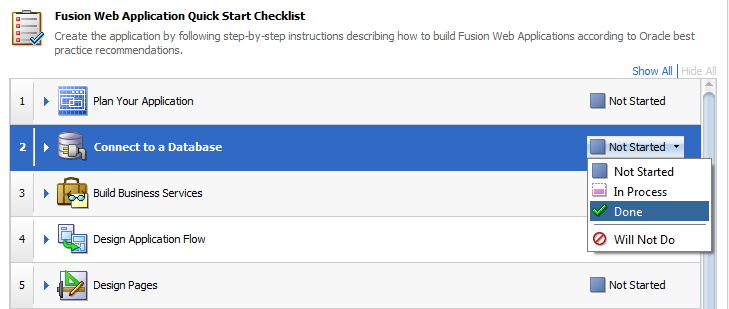
- Click the down arrow to shrink the Connect to a Database step.Then, in the Checklist, set the status of the Connect to a Database step to Done.
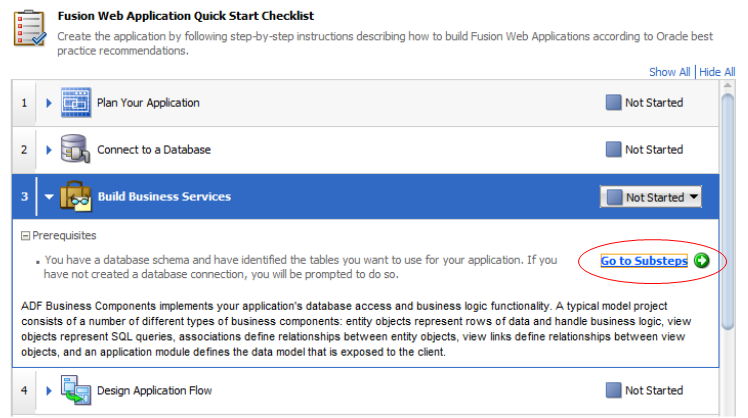
- Click the Build Business Services step to expand it, then click the Go to Substeps button.
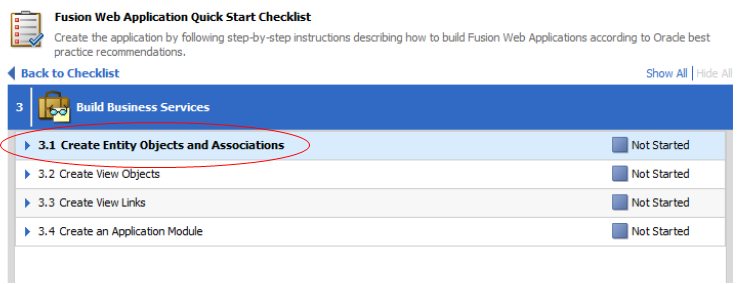
- In the list of substeps, click the Create Entity Objects and Associations sub step.
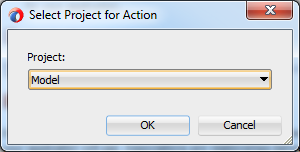
- In the Select Project for Action dialog, select the Model project and click OK.
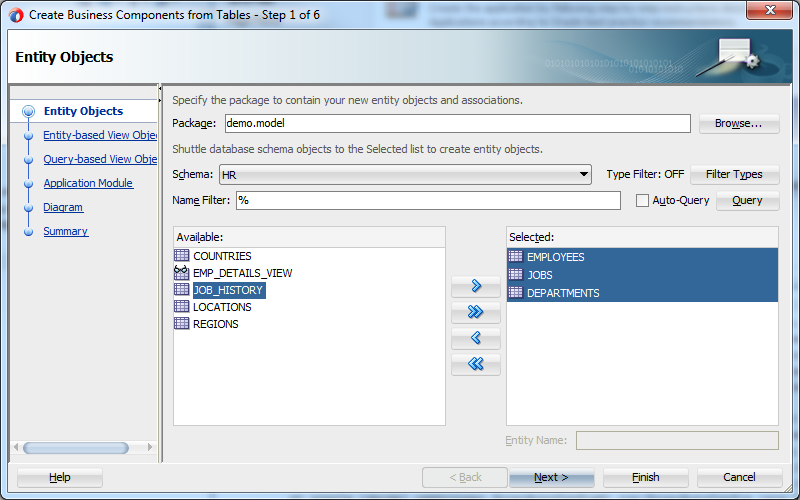
- The Create Business Components from Tables wizard launches. In the Entity Objects page, click the Query button to examine the data dictionary and see available tables.
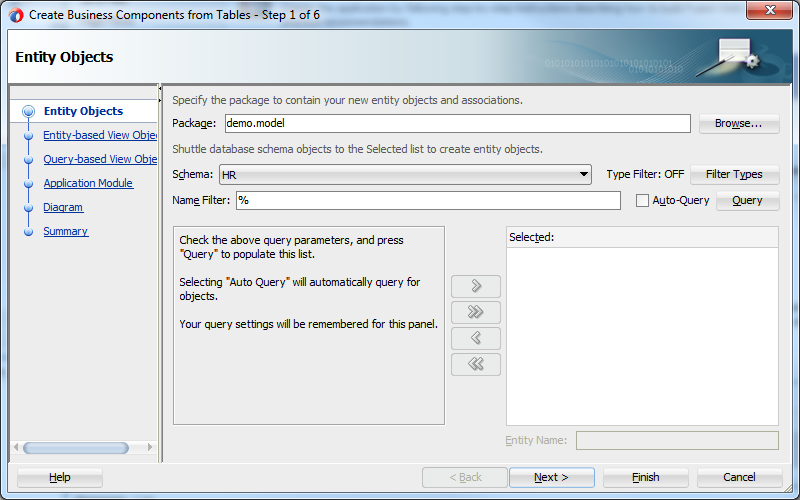
- Select the EMPLOYEES, JOBS and DEPARTMENTS tables in the Available list, and click the right arrow to move your selections to the Selected list. This step creates updatable entity objects based on the tables selected.Then, click Next.
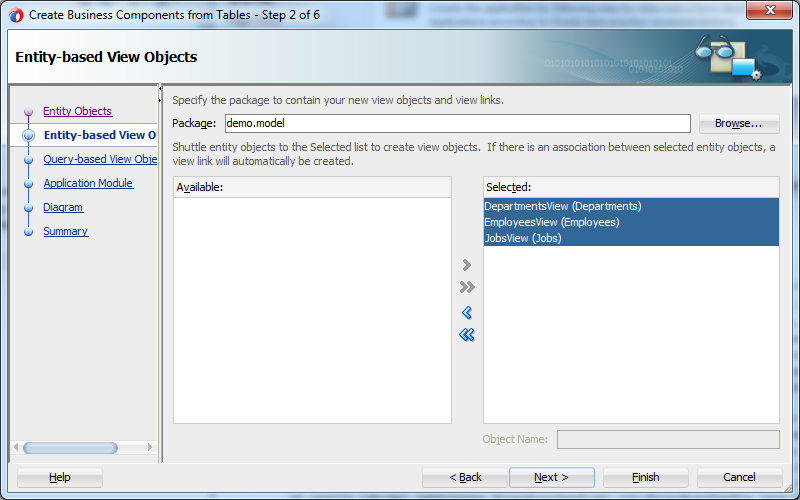
- In the Entity-based View Objects page of the wizard, move DepartmentsView (Departments), JobsView (Jobs) and EmployeesView (Employees) to the Selected list. This step creates matching view objects DepartmentsView, JobsView and EmployeesView for performing queries on the entity objects you just created.Then, click Next and then Next again.
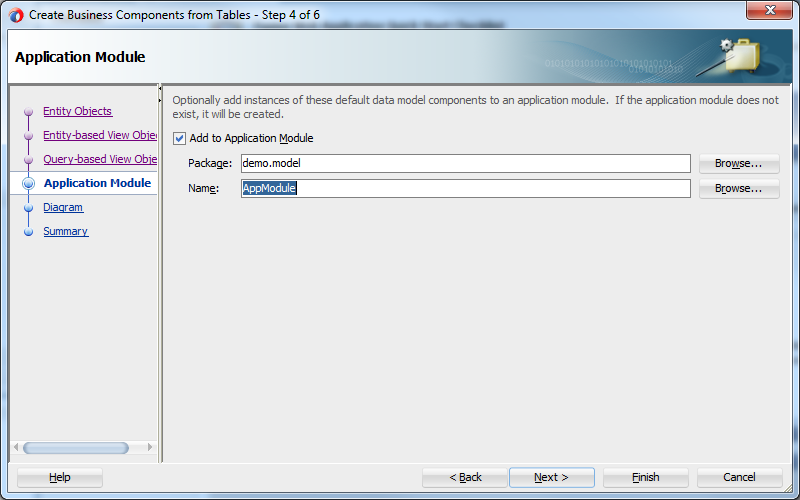
- In the Application Module page, click Finish to create the business components in the Model project.
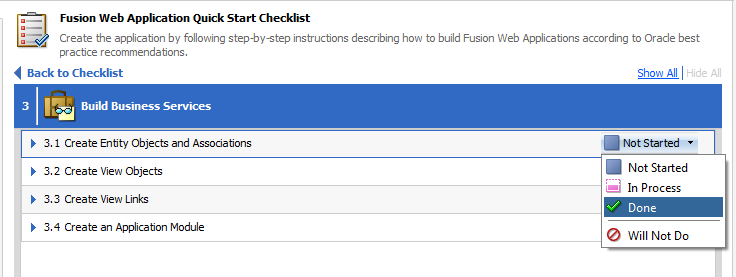
- In the Checklist, set the status of the Create Entity Objects and Associations step to Done.
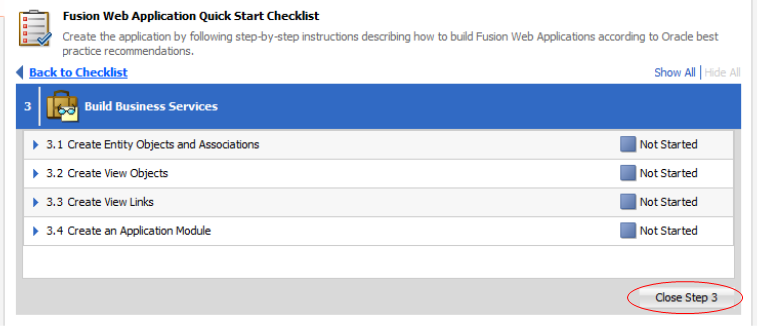
- Click the Close Step 3 button..
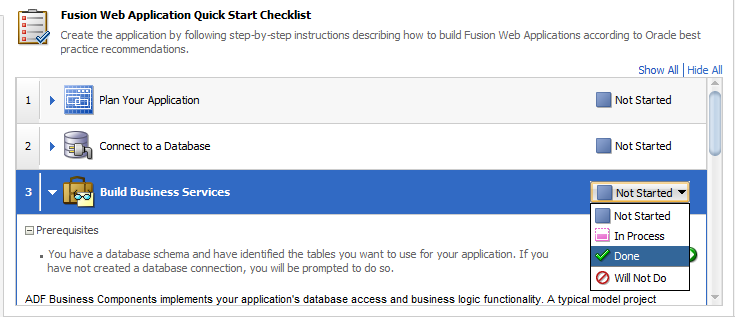
- Set the status of the Build Business Services step to DoneSave all your work
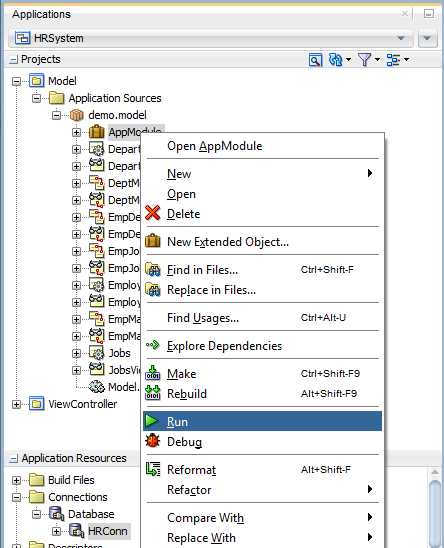
- In the Applications window right-click AppModule and select Run to invoke the application module tester. This starts a small Swing-based application that allows you to test the ADF Business Components you have just created.
- In the Oracle ADF Model Tester window, double-click the EmpDeptFkLink1 node to show the department and employees data. Navigate between the records using the Next button and notice the automatic master-detail synchronization.
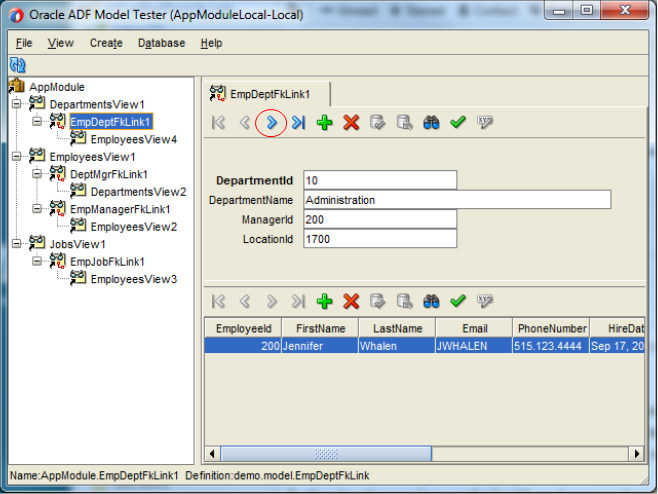
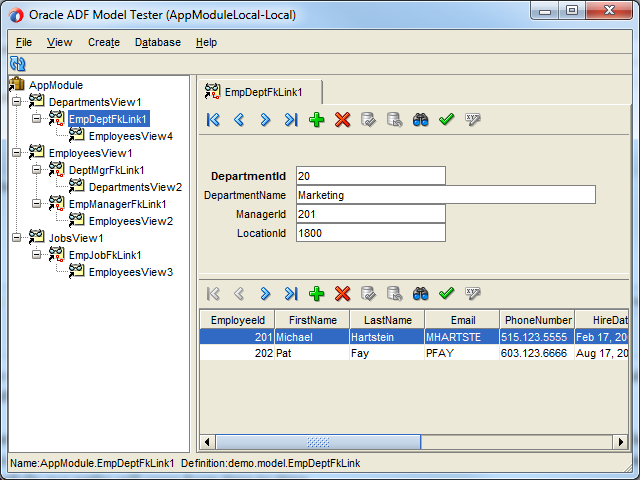
- Click the Specify View Criteria (binocular icon) button in the master toolbar, to enter search criteria for your data.
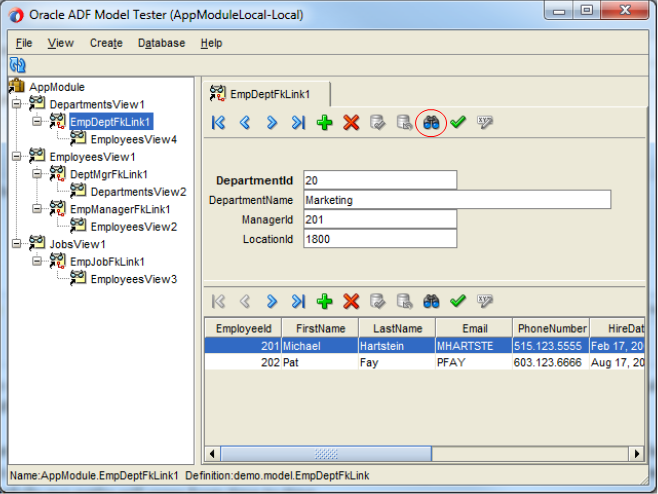 Specify 1700 in the LocationId field and click the Find button to execute the query.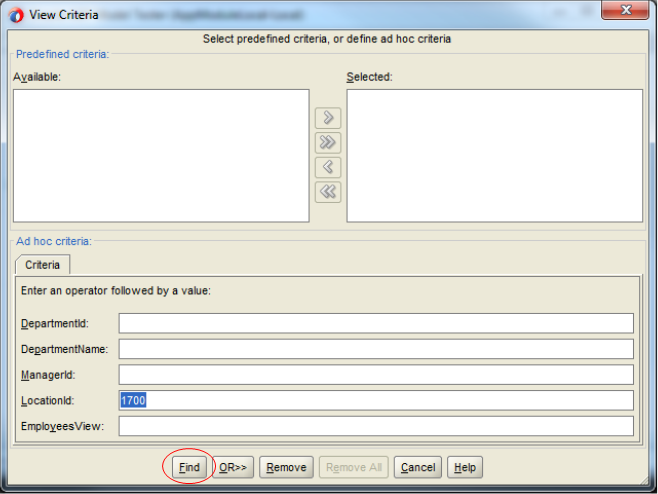
- The form now only shows departments in this location. Use the Next button to scroll through the departments at Location 1700, including Purchasing.
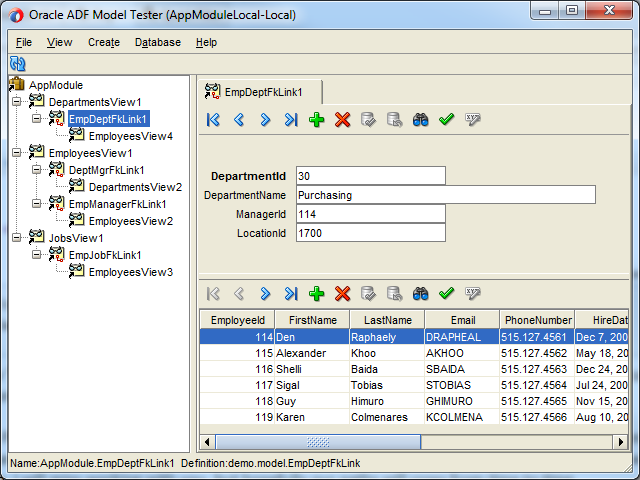 You need to remove the parameter value of the search criteria to access all departments again.
Close the Oracle ADF Model Tester window, and back in JDeveloper, click the Save All icon on JDeveloper main toolbar. icon on the JDeveloper menu bar, or select File > Save All from the menu.