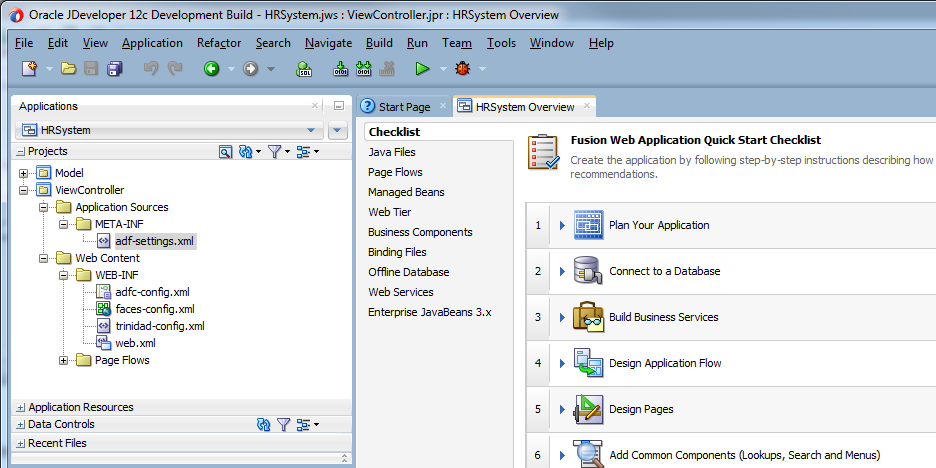
When you work in JDeveloper, you organize your work in projects within an application. JDeveloper provides several template applications that you can use when creating an application and projects. The template applications are pre-configured with a basic set of technologies that are needed for developing the various types of applications. You create your working environment by selecting the template that best fits your needs and then configure it to add any additional technologies you plan to use.
In the first part of this tutorial you are going to create a new Fusion Web application and build reusable business components that will access the database. You'll be using Oracle ADF Business Components to map Java objects to existing tables in your database.
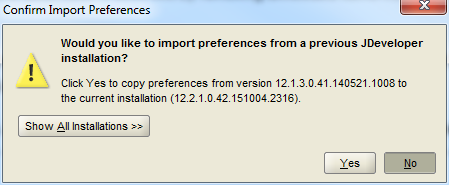
- Start JDeveloper by selecting Start > Programs > JDEVELOPER_HOME > OracleHome > Oracle JDeveloper Studio > Oracle JDeveloper Studio.If a dialog box opens asking if you would like to import preferences from a previous JDeveloper installation, click No.
- In the Select Role dialog, select Studio Developer (All Features) and click OK.
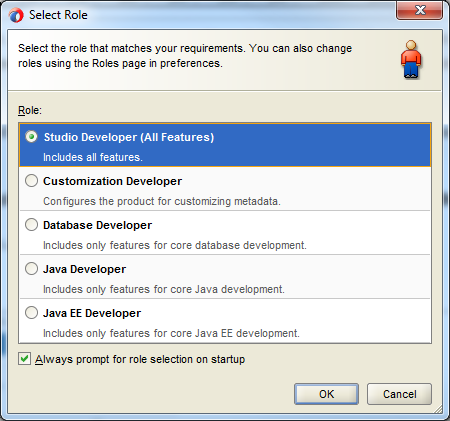 Shaping, which is based on the role of the user, allows the JDeveloper environment to tailor itself. It does this by removing unneeded items from the menus, preferences, new gallery, and even individual fields on dialogs.Shaping can even control the default values for fields on dialogs within the tool. When you first start JDeveloper, you are prompted to choose a role that describes how you are going to use JDeveloper. If you choose a role of "Java Developer" versus "Database Developer " versus "Customization Developer " you will get a totally different experience!
 - If a dialog box opens asking if you would like to import preferences from a previous JDeveloper installation, click No.
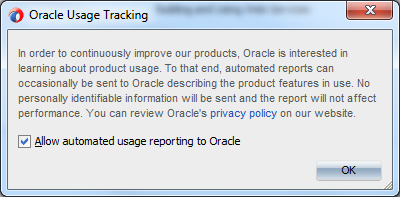
- In the Track Usage popup, click OK.
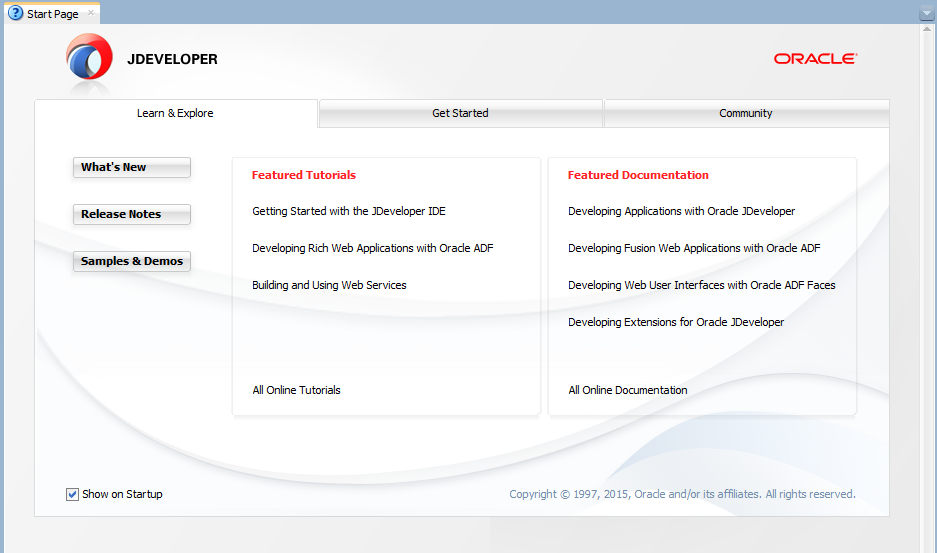
- Once loaded, the JDeveloper IDE appears. The very first time you open JDeveloper, the Start Page displays. You can re-invoke the Start Page later by choosing Help > Start Page.Notice the various options available to help you learn about JDeveloper. After exploring some of these options, close the Start Page by clicking the X on its tab (the X appears when you mouse over the tab).
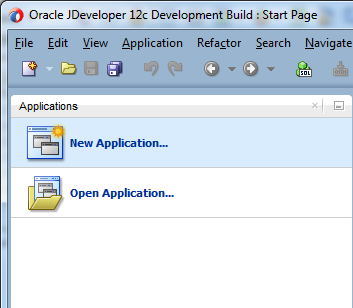
- Click the New Application link in the Applications window.
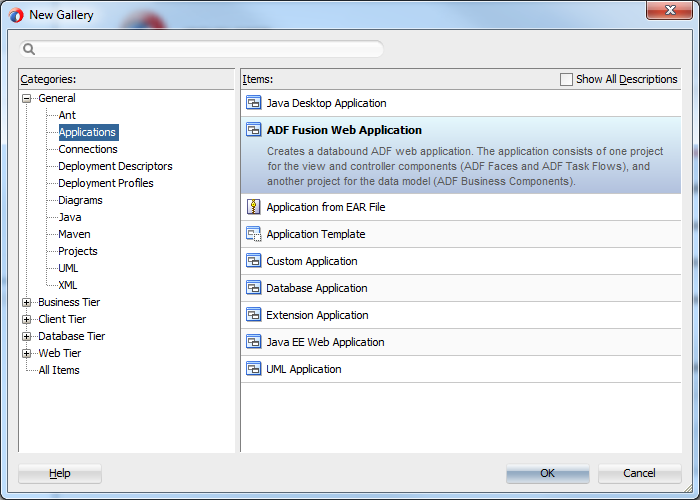
- In the New Gallery, select ADF Fusion Web Application and click OK.
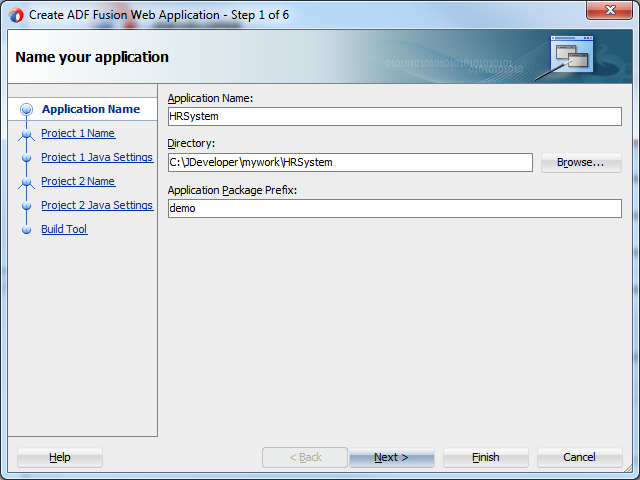
- JDeveloper loads the required features for a Fusion Web application and the Create Fusion Web Application (ADF) wizard launches. In the Name your application page of the wizard, type HRSystem as the name. If required, you can change the directory path to create your files in another location.In the Application Package Prefix field set the value to be demo and click Next.
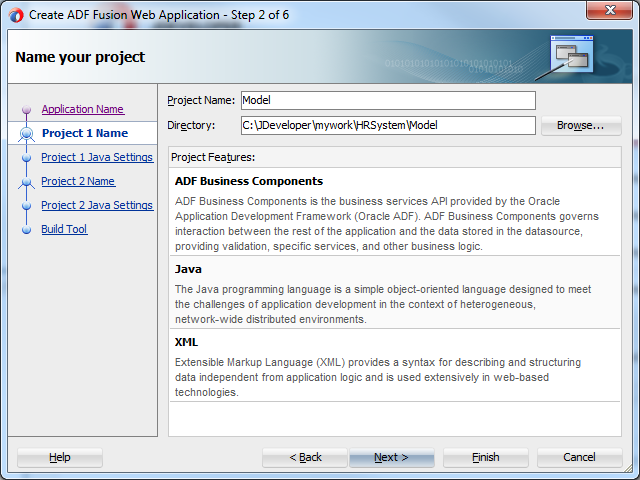
- In the Name your project page ensure that the project name is Model (the default). Notice that ADF Business Components and Java are listed as the project features of a Fusion Web application.Then click Next
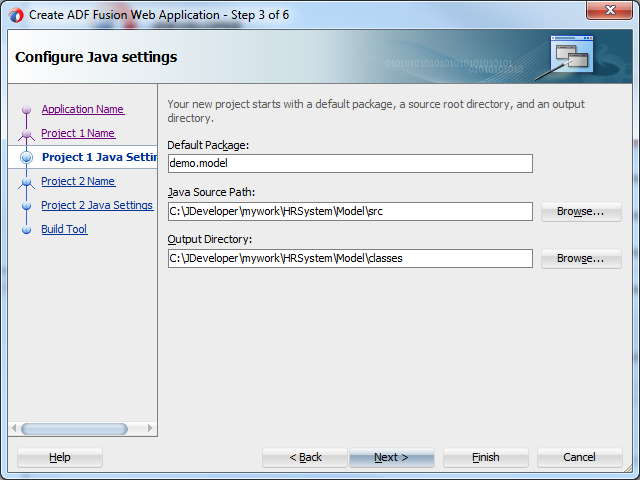
- The Configure Java settings page allows you to define a default package, a Java source path and an output directory. Click Next to accept the default values.
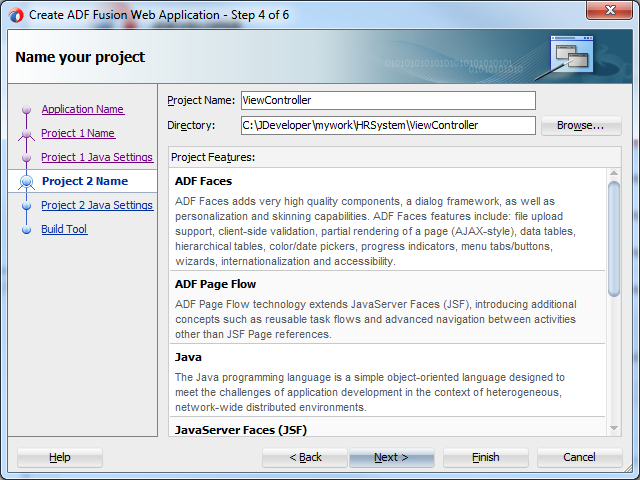
- In the second Name your project page, ensure that the Project Name is ViewController. Scroll through the list of project features to see the types of technologies that can be used with a Fusion Web application.Click Next.
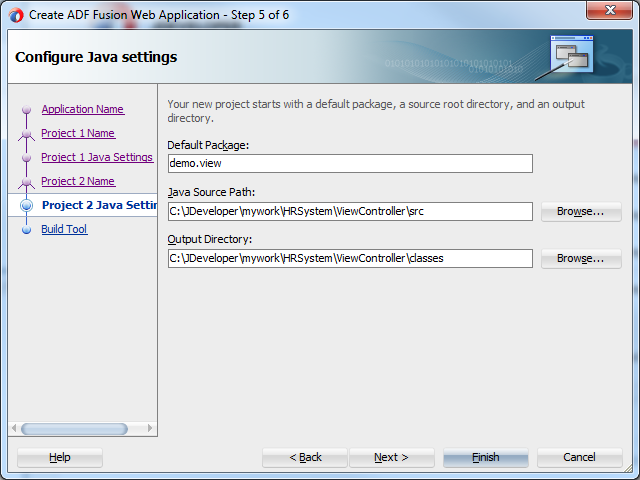
- In the Configure Java settings page accept the defaults and click Finish to create your Fusion Web application and projects.
- The HRSystem application and the two projects are displayed in the Applications window on the left of the screen. Save your work.Notice too, the Checklist on the right side of the screen. This checklist is displayed by default when a Fusion Web application is created. It is designed as a guide to lead you through the tasks involved in building this type of application. The next steps show you how the checklist might be used while developing an application.